An iOS script turns repeated actions into a program. When an account or a device is restricted, it usually comes from install signatures and operation signatures.
Where risk control comes from, and how it is detected
A run can still be restricted after it works. Line the sources up first:
| Source | What it means | How to reduce it |
|---|---|---|
| Device signature | Jailbreak traces, non-official install, abnormal signing | No jailbreak, proper signing |
| Screenshot / mirror signature | A screen mirror sent back is recognized as video capture | No-screen-mirror screenshots |
| Operation signature | Fixed coordinates, millisecond repetition, 24h without a break | Randomize, stagger, limit frequency |
| Account behavior | A large amount of identical actions on one IP | Network isolation, different behavior |
The screenshot method is one item hardware setups are often judged on. Most setups mirror the screen back to the computer, and the system has a continuous video channel. The OTG docs say you can skip the agent IPA and call image.captureFullScreenNoAuto for one frame, without screen mirroring.
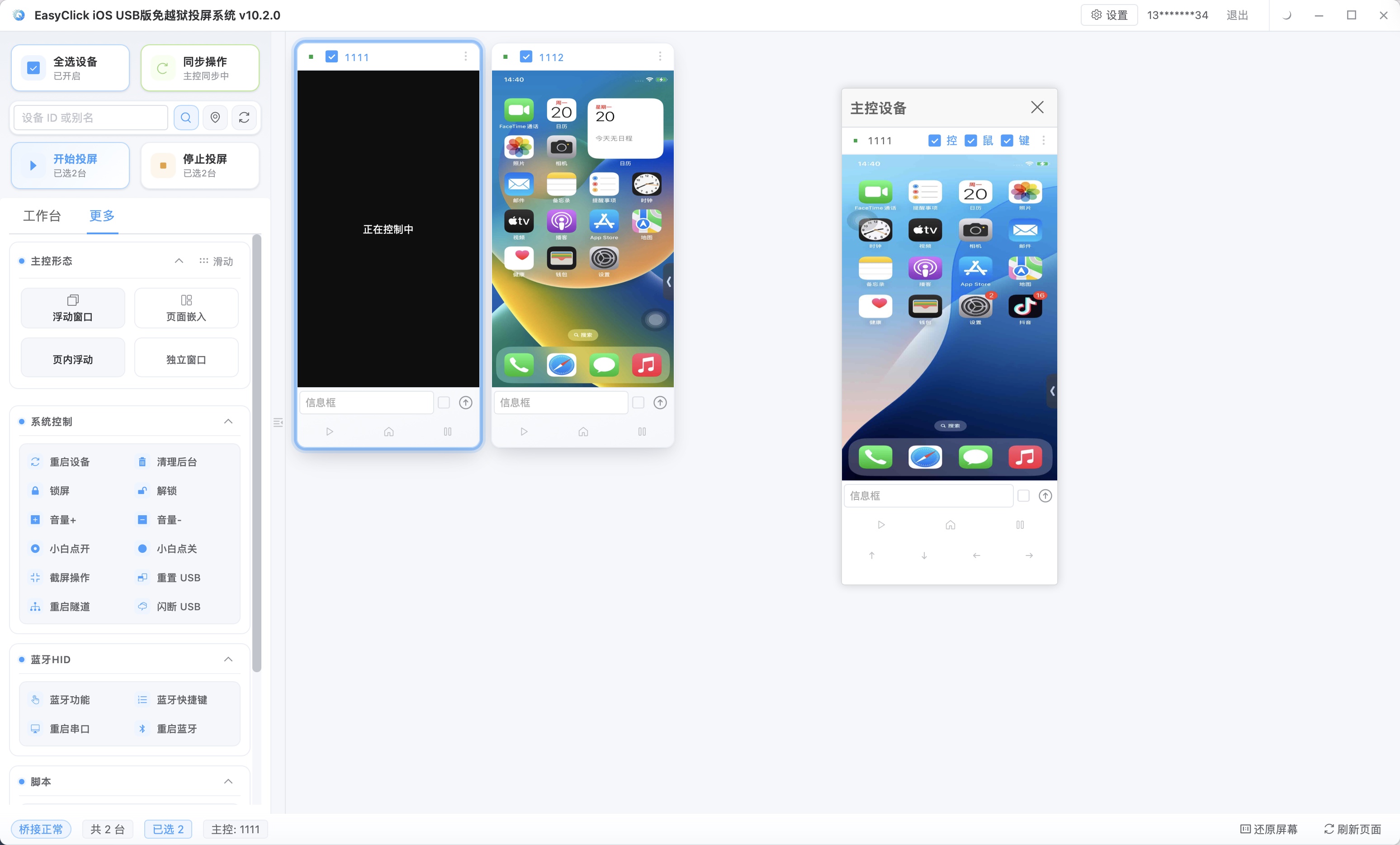
After a trigger, the usual signs are: a captcha or a second verification, taps that do not respond and submits that do not succeed, an account banned temporarily or permanently, new accounts registered on the same device also affected, and some features limited. That is the platform’s security mechanism. When you automate, follow the rules and keep false hits down.
The device layer looks at whether the phone is jailbroken, whether an app with an abnormal certificate is installed, and whether an agent program is running. An agent-mode IPA carries an install signature. Bluetooth HID and OTG HID can skip the agent. USB HID, from EC iOS USB 10.7.0 (2026-09-08), adds no extra board, the phone should be iOS 17 or above, and it is mutually exclusive with Start automation in the central control and with startEnv in a script. On this path, use a no-automation screenshot when you need to see the screen.
The behavior layer looks at time gaps, coordinates, and the path of actions. A hand tap has uneven gaps, and the coordinates drift a little. If a machine is identical every time, it stands out. The network layer looks at IP ownership, device fingerprint, and whether the network is the same. A large number of devices acting at once under one IP needs network isolation to split them apart.
Screen mirroring versus no-automation screenshots, and how to use them
The difference between screen mirroring and a no-automation screenshot:
| Dimension | Screen-mirror screenshot | No-automation screenshot (captureFullScreenNoAuto) |
|---|---|---|
| How it works | The picture is mirrored back to the computer in real time, then captured | Call the system screenshot capability for a single frame |
| Signature | The video-capture channel is obvious and easy to detect | No mirror channel, fewer machine signatures |
| Depends on | Usually an agent or a mirror service | Bluetooth HID / OTG HID is enough |
| Risk-control result | Ordinary | Greatly lowers the chance of detection |
| Real time | A continuous picture | A single frame (pre-capture can speed it up) |
| Data volume | A continuous video stream | One frame of an image |
Screen mirroring has to keep a video stream open. AirPlay, a USB tunnel, or another protocol leaves a channel on the system and the network. An app’s own risk control can use that to decide an external device is capturing the picture. image.captureFullScreenNoAuto takes one static frame of the current screen and does not open a continuous video stream. It fits EC iOS USB 6.25.0 and above. The docs say it is a bit slow. For speed, use image.startPreCapScreen. Image-and-color recognition only needs that one frame. You do not have to keep mirroring the picture back just to find a button. On iOS 17 and above, if the tunnel has to be rebuilt before a screenshot, call image.resetCaptureScreenNoAutoEnv() first. Below 17 the call does not error either. It fits 9.21.0 and above.
How to call the screenshot functions in an agent-free setup
In Bluetooth HID and OTG HID, screenshots use the form in the docs. When types on startPreCapScreen is set to 10, it is PNG, uncompressed, and it can capture without automation on, which pairs with Bluetooth events and skips the agent IPA. The quality parameter in the example follows jpg type 1:
image.resetCaptureScreenNoAutoEnv();
let img = image.captureFullScreenNoAuto();
let start = image.startPreCapScreen("1", 50, 20);
Three situations:
| Situation | Recommended method | Note |
|---|---|---|
| IDE debugging | The no-automation capture button on the image-and-color panel | Screenshot debugging during development |
| Live testing | Live test (no automation) | Verify the script during testing |
| Script run | image.captureFullScreenNoAuto or image.startPreCapScreen |
Production runs |
During development, use the no-automation capture button on the image-and-color panel to debug image and color. During testing, use live test (no automation) to verify the script. In production, call image.captureFullScreenNoAuto or image.startPreCapScreen in the script.
image.startPreCapScreen starts a background thread that captures in a loop, to raise throughput. It fits EC iOS USB 6.18.0 and above. Use it when you loop-detect a screen. It still does not use screen mirroring. The parameters are types, quality, and delay. When types is 10, it is PNG and it can capture with automation off. 1 and 2 are jpg. For type 1, quality supports 1, 50, and 100. For type 2, quality supports 1 to 100. delay is the pre-capture interval, in milliseconds. The "1", 50, 20 in the example above is jpg, quality 50, interval 20 milliseconds. With automation off, change types to "10".
A no-screen-mirror screenshot only changes how the picture is taken. It does not change the recognition that follows:
| Recognition | Available | Note |
|---|---|---|
| OCR text recognition | Yes | Recognize text in the screenshot |
| YOLO object detection | Yes | Detect objects in the screenshot |
| Image-and-color search | Yes | Look up colors in the screenshot |
| Template matching | Yes | Match an image in the screenshot |
| Node features | No | Needs agent IPA support |
A batch checklist, a compliance reminder, and common mistakes
A checklist for lowering risk control in a batch:
| Action | Suggestion | Note |
|---|---|---|
| When it runs | Stagger the start. Avoid starting the whole batch on the hour | 10 devices all starting at 09:00:00 is very suspicious |
| Gap between actions | Randomize the gap (±20%). Avoid a millisecond pattern | A fixed 1000ms gap is an obvious machine signature |
| Tap coordinates | Random offset across several points. Avoid one shared coordinate | Offset a few pixels at random inside the target area |
| Script path | Rotate several scripts. Avoid a completely identical path | 10 devices running the exact same script path is high risk |
| Frequency on one device | Keep it in a reasonable range (compliant cases) | Too high a frequency triggers risk control no matter how you reduce the signature |
| Network | Group devices onto separate IPs. Avoid a large number of devices on one exit | A large number of devices under one IP is a typical cluster-control signature |
Add your own offsets to gaps and coordinates for the business. The screenshot example in the docs uses utils.getRangeInt(200, 500) for a random wait, then calls image.captureFullScreenNoAuto(). A fixed 1000 milliseconds, tapping the same pixel every time, is easier to see than the screenshot method.
The following actions can still be restricted because of the behavior, even when the screenshot does not use a mirror:
| Highly sensitive action | Risk point | Suggestion |
|---|---|---|
| High-frequency taps on the same coordinate | Fixed coordinate + high frequency = a typical machine signature | Random offset across several points |
| Millisecond-precise repetition | A completely identical gap is an obvious anomaly | Add a random offset |
| Running 24 hours without a break | A person cannot go without rest | Set a reasonable working window |
| Batch registration / login | A large number of account actions in a short time | Spread them out and lower the frequency |
| Many devices on one IP | A typical cluster-control signature | Split the network into groups |
Keep the machine signature down, and use it for automation testing, livestream operations support, and batch install management. Batch account farming and fake engagement are outside this scope.
| Compliant use | Rule-breaking use |
|---|---|
| Automation testing | Fake volume and chart manipulation |
| Operations management | Batch account farming |
| Help with content publishing | Game cheating |
| Batch device setup | Bypassing platform risk control |
| Data entry | Fake interaction |
Cluster control has to follow platform rules and the law. A no-screen-mirror screenshot only removes one video channel. Operation frequency, coordinates, and account behavior are still inside the detection range. Gaps, coordinates, paths, and execution order all need to differ. Random delay alone is not enough. A low frequency is also not the same as no risk. It depends on what the account is doing. Actively breaking a platform security mechanism is not discussed here.
About EasyClick: A mobile automation script development platform covering three phone ecosystems: Android without root, iOS without jailbreak, and HarmonyOS. It also offers Apple script writing, Apple cluster control, Android cluster control, remote cloud control, and AI phone cluster control. → Explore all products
Ready to build it for real?
Every approach in this article can be built on the EasyClick phone automation platform — full documentation, developer tools and cluster/cloud-control products, free to try.