AI operating a phone means a large model understands a natural-language instruction, breaks it into steps on its own, and drives the phone to carry them out.
What the workflow editor is
A long script is hard to change. A few dozen lines can still be read in order. At a few hundred or a thousand lines, once you add conditions, error handling, and retries, every change means searching the whole block of code. Someone who cannot write code never gets in the door.
The AI workflow editor puts those steps on a canvas. Drag nodes, connect lines, and click to change parameters. A workflow saves “where to tap, how long to wait, which app to open” so you can run it again later. The entry is Workflow editing at the top of the AI agent. Before you run or test, finish USB device authorization and the matching automation or Bluetooth environment. Otherwise common steps fail immediately.
The workflow library on the left is a tree. The root is a main flow you can run directly. Children are subflows called by the main flow, shown indented. Click a name to open it for editing. Hover to open the folder or delete it. The left panel can be collapsed. A root flow can be exported as .spk. A package marked 密 is an imported read-only package. New on the top bar asks for a name. Save with the button, or Ctrl+S (Cmd+S on Mac). Before saving you can click Validate to see missing fields and wrong connections. Arrange auto-tidies the flow chart. In settings you can turn on auto-save when switching tabs.
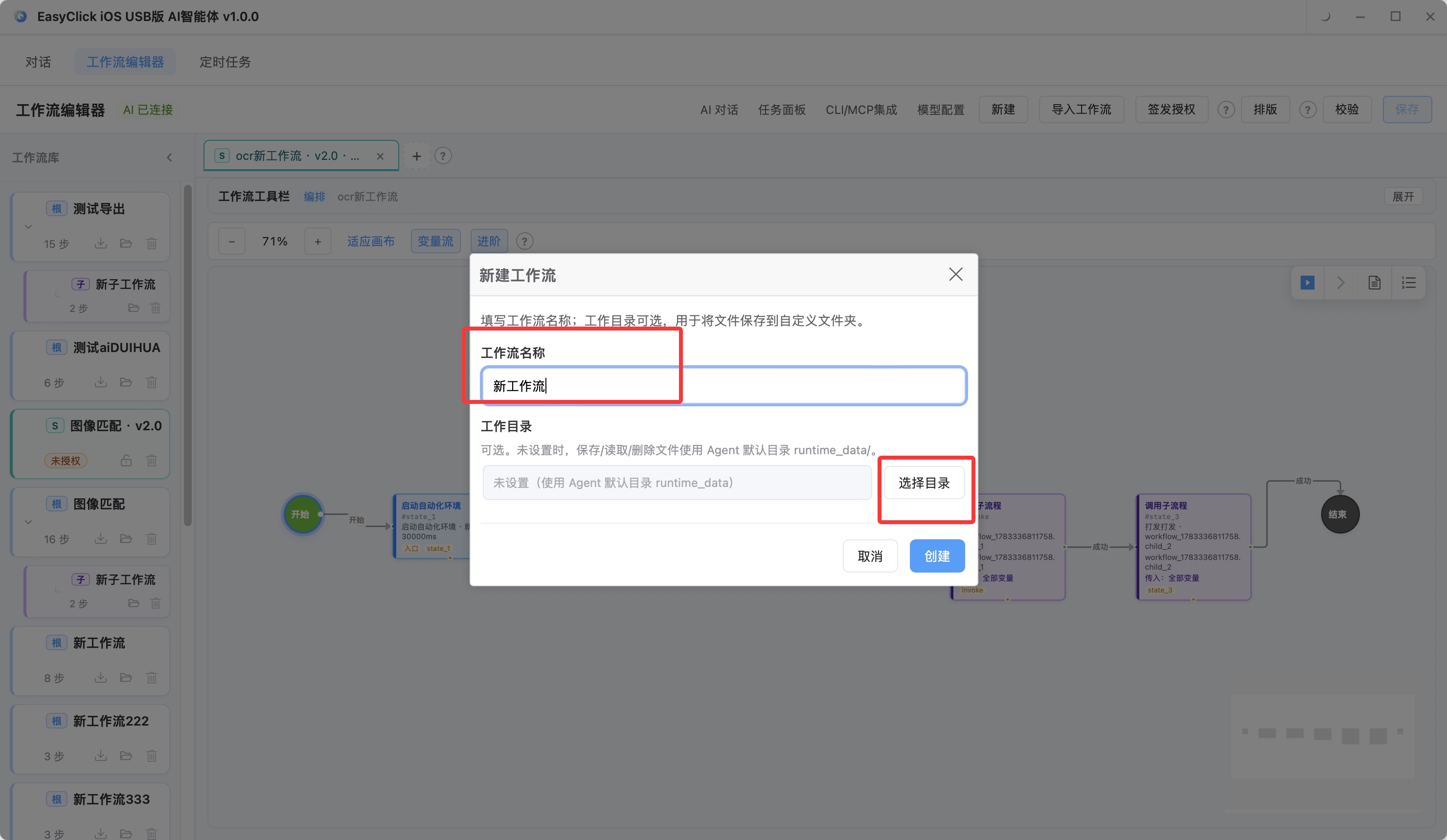
The middle is the canvas. Drag out nodes such as tap, swipe, and OCR, and connect them into a chain. The left side is the workflow library. The right side is the parameters of the current step. The screen is split into these areas:
| Area | Contents |
|---|---|
| Left | Workflow library (a tree, with main flows and subflows) |
| Upper middle | Tabs for open flows (several can be open at once) |
| Lower middle | Visual flow chart, or text mode |
| Right | Parameters of the selected step, the variable pool, and the AI assist panel |
The editor supports two modes:
| Mode | Who it is for |
|---|---|
| Visual | Most people: drag nodes, connect lines, click a step and change parameters |
| Text | People who know config files: edit the JSON directly |
At the start you can stay in visual mode the whole time. The top right of a step card can switch simple / advanced. Simple mode hides JSON and advanced items. Advanced mode lays out the full config.
The diagram has three kinds of things. A box (state) is a group of steps that run in order. An arrow shows where to go after the previous step succeeds. Failure and conditions can each have their own line. A diamond splits by condition, for example “tap if found, wait if not.” A step can also be changed to call another saved flow, which is an invoke subflow.
The canvas can be dragged and zoomed, and a corner has a minimap. Undo is Ctrl+Z, or Cmd+Z on Mac. Right-click to copy or delete, or to insert a step on a connection. After a test run, nodes light up: green for success, red for failure, blue for running. Click a node to see that step’s log and its inputs and outputs.
How variables pass, and the step categories
When you use it, separate two kinds of data first:
| Type | Meaning | Where to set it |
|---|---|---|
| Flow config | Default values that exist before the flow starts (bundle id, keywords, and so on) | The Flow config dialog |
| Step result | Data left after a step finishes (screenshot, OCR, image-match result, and so on) | Save to variable inside the step |
The variable pool is on the canvas toolbar. Design view infers which configs and which step results the flow structure will have. Run view waits until the test run finishes and fills in the actual values. Click a variable and the steps on the canvas that reference it are highlighted. The test-run variable flow can show only the data lines between nodes that ran this time. When you call a subflow, pick which variables go in and which come back with a checklist. You do not write the JSON by hand.
Steps are grouped by category: Common · Agent events · OCR · Visual location (VLM) · Image and color · Photo library · Input-method input · BLE Bluetooth · Link management · Data processing · Files · HTTP/CLI/MCP · Sub-workflow (FSM).
Environment and apps:
| Step | What it does |
|---|---|
| Device license check | Check whether the USB or mirroring license is valid |
| Start automation environment | Start the device automation service and poll until it is ready |
| Open app | Launch an app by Bundle ID |
| Go home | Simulate the Home key |
For the UI and gestures there is node capture (dump the UI tree), tap, swipe, long press, double tap, multi-touch, text input, and VLM visual location. The vision model finds element coordinates in a screenshot. You write a description in Chinese, for example “settings button in the top right.”
Screenshots and OCR are each split into a no-automation step and an automation step, with the same names used in AI chat. OCR can use paddleOcrNcnnV5 (the default, a balance of speed and accuracy), ONNX v5/v4, or OcrLite. Image matching has no-automation image match and automation image match (OpenCV template matching), plus no-automation color-shift image match and automation color-shift image match. A common chain is match_template_* → pick_match (take the center point) → click_point.
To pull data out, use pick_node (take a field, region, or coordinate from a node variable), pick_ocr (pick a line, field, or center point from an OCR result), and pick_match (take the center point or the best match from an image-match result). These steps can use a quick template, and they can show a preview of the last test run.
How the flow turns:
| Step | What it does |
|---|---|
| Conditional branch | if/else, two groups of nested steps |
| Multi-way branch | Match cases in order, otherwise default |
| Manual pause | The task pauses and waits for a person to continue on the task panel |
| Call subflow | Run another workflow synchronously, with parameters in and variables written back |
To reach an outside system, use an HTTP request (an endpoint in the registry, or a URL you specify), CLI execution, or MCP execution.
Test after you change it, and the AI panel as a backstop
Test a flow after you change it. Do not drop it straight onto a production phone and carry the risk of forcing it. Pick an online device on the toolbar and click test run or run. You can also test-run from this step, or run the selected step. Steps on the canvas change color. Running, success, and failure are separate, and you can force a stop at any time.
A test run becomes a real task. On the task panel, click workflow layout to return to the editor and play each step’s result again. After a device is selected, some steps can preview on the spot:
| Step type | Preview |
|---|---|
| OCR | Capture the screen and recognize text |
| Image match / color-shift image match | Match boxes, box a search region, crop and save a template |
| Node capture | See which elements on the current screen can be tapped |
| VLM visual location | Mark a position on the screenshot from a Chinese description |
| Coordinate tap | Pick a point on the screenshot |
The AI panel on the right needs a large model configured first. Describe the whole automation in Chinese and it can generate a flow chart. Tick modify selected state only and it changes only the nodes you selected. If you are not satisfied, keep talking and change it over several turns. After it generates, validate first, then test-run. Get the idea running in chat, then collect it in the editor into a flow you can reuse and schedule in a batch.
Validate before you save
Click Validate before you save or test-run. The editor checks these: whether the workflow ID and the FSM initial/final states can be reached; whether a photo-library step has folderPath; whether an image-match step has a template path or Base64; if a file step is in external mode, whether a directory is specified; whether invoke loops into a circular dependency; whether global variable names conflict or use a reserved word. If it fails, the interface shows only the first error. Fix that, then run.
A shared piece, such as login or a screenshot, can be pulled out as a subflow. The main flow only calls it. During a test run, nodes change color, the log can be checked, and the result can be replayed. If you cannot drag nodes yet, describe it in Chinese from the AI panel and generate the chart first. After an action tried in chat is saved as a workflow, it can be run again, scheduled in a batch, or triggered on a timer. For a single run, chat is enough. For something you will run again over a long time, save it as a workflow.
About EasyClick: A mobile automation script development platform covering three phone ecosystems: Android without root, iOS without jailbreak, and HarmonyOS. It also offers Apple script writing, Apple cluster control, Android cluster control, remote cloud control, and AI phone cluster control. → Explore all products
Ready to build it for real?
Every approach in this article can be built on the EasyClick phone automation platform — full documentation, developer tools and cluster/cloud-control products, free to try.