An AI agent operating a phone means you say what you want in ordinary language, the model splits it into taps and text input step by step, and then it drives a real phone.
Open it and you are on the chat page
Writing phone automation usually means code, APIs, image-and-color parameters, and device communication. iPhone makes that harder: a jailbreak environment is complicated, and signing and distribution are a hassle. Some requests are actually short. Nobody on the team can write them. People who used to get stuck on writing a script can start from the chat page and say what they need in Chinese.
Open the AI agent and the default page is AI chat. The screen has four areas:
| Area | Contents |
|---|---|
| Top toolbar | Connection status, model settings, history, task panel, settings, workflow editing, new session, CLI/MCP integration |
| Left | Pick a device + the workflow library (a card list you can run and edit) |
| Middle | Chat history, with multiple chat tabs (each tab can pick its own model) |
| Bottom | Input box. When a large model is configured, you can choose which model this session uses |
The top can switch between Chat and Workflow editing. Put one-off work in chat. Put a flow you will run again into the editor.
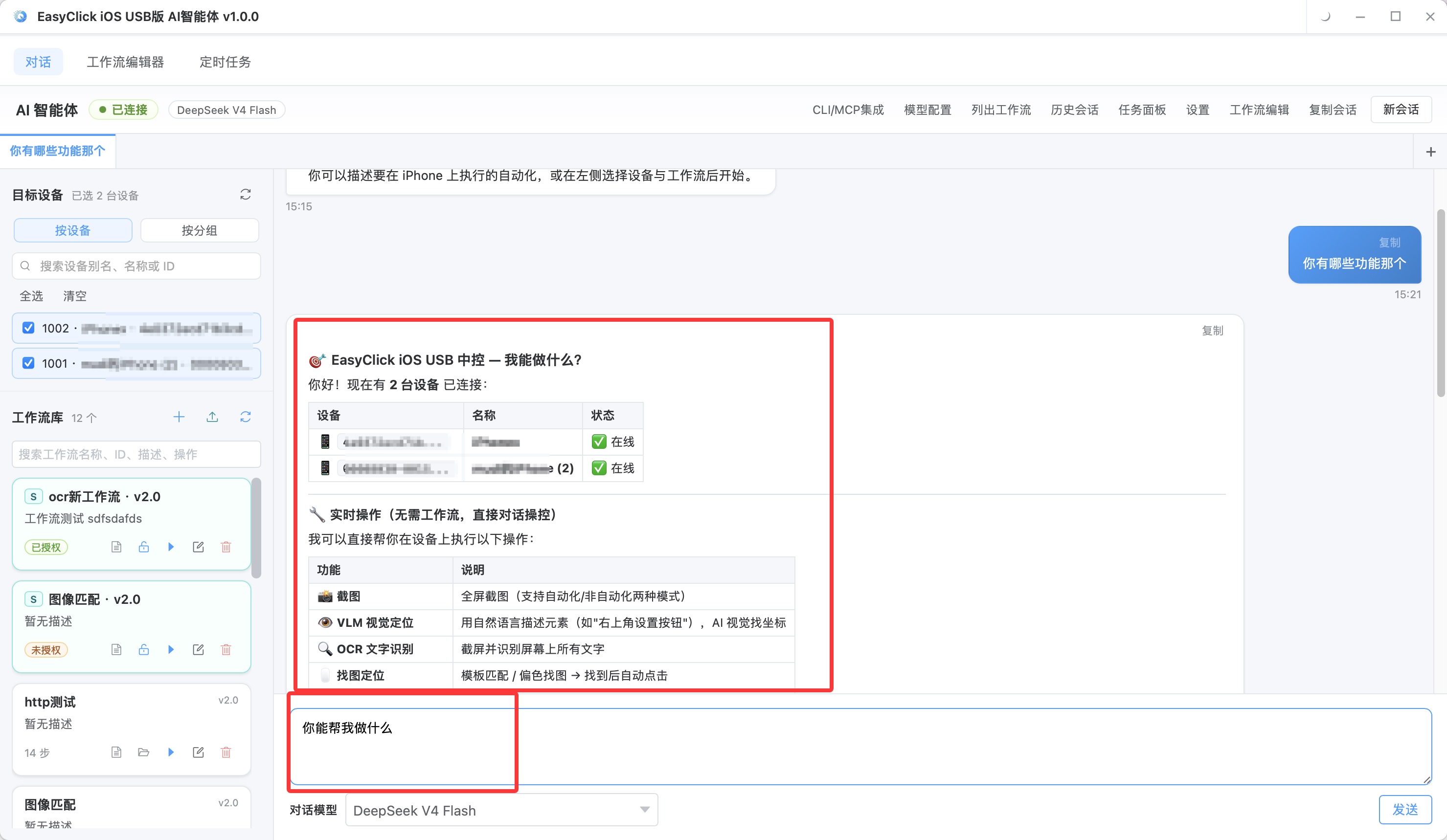
Describe it in Chinese in the input box at the bottom, for example “open Safari on the third iPhone for me.” After the AI understands the intent, it runs. Each message is kept in the chat history in the middle, and you can scroll back.
The operation is three steps. Select a device on the left. If you do not, the AI asks which phone to use. Write the request in the input box, press Enter to send, and Shift + Enter for a new line. When something needs to run, it creates a task. Watch progress on the task panel. Taps, screenshots, and running a workflow in chat depend on a USB device license and the runtime environment. Connection status on the toolbar shows whether the AI service is online. When it is offline, click Start AI. In Settings you can change where data is stored and how many devices run at once. A past session can be continued, or deleted.
What you can say to the AI
What you say in chat maps onto automation capabilities that already exist.
Say the action directly, for example “open Safari on the first phone for me,” “which automations can run right now,” or “run the login flow.”
Screenshots and OCR can be phrased like this. “No-automation screenshot, look at the current screen”: the device only needs to be connected, and the automation environment does not have to be on. “Automation screenshot, save the current screen”: start the automation environment first. “Read the text on screen and see whether there is a login button.” “No-automation OCR, read the text on the screen.”
Image matching can be phrased like this. “No-automation image match, find the button with template btn_ok.png”: the template path has to be ready in advance. “Use visual location to find the settings button in the top right”: a VLM model has to be configured.
The AI replies in Chinese. When information is missing it asks. It will not invent a flow name that does not exist.
AI chat and the workflow editor use the same capability names:
| Phrasing | Meaning | Automation on? |
|---|---|---|
| No-automation screenshot | Bridge captures the full screen directly | No |
| Automation screenshot | The agent service captures the full screen | Yes |
| No-automation OCR | Bridge screenshot + read text | No |
| Automation OCR | Agent screenshot + read text | Yes |
| No-automation image match / automation image match | OpenCV template matching | Depends on the environment |
| No-automation color-shift image match / automation color-shift image match | Match a small transparent or color-shifted image | Depends on the environment |
Template path, region crop, and center-point extraction belong in the workflow editor, using the image-match preview. Looking at a picture and finding a button in chat is less complete than the editor. A fixed icon is steadier in a workflow.
The workflow library on the left lists saved main flows. Subflows are viewed in the editor. Each card can:
| Action | What it does |
|---|---|
| Run | Run immediately on the selected device (select a device first) |
| Edit | Open the workflow editor and change it |
| Open folder | Open the directory of that flow’s files (for backup) |
| Delete | Delete this flow |
| New | Create a blank flow |
The search box above filters by name and description. An action you have already tried in chat can be dragged into a visual flow in the editor, then run again, and it can also be scheduled in a batch.
These capabilities need a large model configured first. Before an API key is set, AI chat only accepts fixed commands:
| Input | Effect |
|---|---|
list workflows |
List every workflow |
run workflow ID |
Run on the selected device; a device ID can be included |
The feature set is limited, and it can already run. Follow the quick start and configure a large model (DeepSeek, OpenAI, and others are supported), then drive it with natural language.
Chat history is saved automatically. Next time, open a past session and continue. The AI reply appears character by character. If you do not want to wait, click cancel. Each chat tab can use a different model, which is useful for comparing results. Before you run, confirm the USB device license and the runtime environment (automation environment / Bluetooth / OTG). Otherwise actions that execute will fail.
About EasyClick: A mobile automation script development platform covering three phone ecosystems: Android without root, iOS without jailbreak, and HarmonyOS. It also offers Apple script writing, Apple cluster control, Android cluster control, remote cloud control, and AI phone cluster control. → Explore all products
Ready to build it for real?
Every approach in this article can be built on the EasyClick phone automation platform — full documentation, developer tools and cluster/cloud-control products, free to try.