A person does it once, and a script does it a hundred times the same way. A hundred phones doing it at once is cluster control.
Get clear on what a script can do, then prepare the environment
A phone automation script writes repeated manual operations into a program and lets the device run them. Four common kinds: batch repeated operations, such as check-in, batch likes, and batch replies; data collection, grabbing public pages; test regression, running cases automatically and leaving a reproduction path; scheduled tasks, running when the time comes.
Before you write, fix three things: what the target flow is, whether it runs once or on a timed loop, and whether failure means retry, skip, or alert. Check-in is the shortest and suits practice: open the app, wait for the home page, tap the check-in entry, and look for the success prompt. Collection means paging, grabbing item by item, and saving locally, which uses variables and arrays. Test regression means operating by case, asserting step by step, and producing a report. The skeleton is the same: open the app, wait until it is ready, perform the action, check the result, and handle exceptions.
The scope is personal automation, automated testing, operating your own devices, and compliant data collection. Handling public data on your own devices can be written as a script. Gray-market use is outside this discussion.
Environment setup splits by device type:
| Device type | Key capability | What you need |
|---|---|---|
| Android (no root) | ADB + Accessibility Service | Turn on USB debugging, install the script engine |
| iOS (no jailbreak) | Official screen-mirroring protocol + enterprise signing | Install the signed engine, turn on screen mirroring |
| HarmonyOS Next | System automation capability | Turn on developer mode, install the engine |
Android has the lowest threshold. USB debugging plus an accessibility grant is enough, and there is more material. iOS means signing and screen mirroring, so leave extra time the first time. HarmonyOS sits between the two. If you are only trying it, start on Android.
The common order is turn the capability on, establish the connection, then verify the channel. On Android, tap the version number to open developer mode, turn on USB debugging, connect the computer and tap Allow, install the script engine, then turn on accessibility. The standard you have passed is that the engine can see the device and can read page controls. On iOS, install the engine on the computer, turn on screen mirroring on the phone, build the mirroring channel, then install the injection component. On iOS 15 and above, offline main program v7.2.0 and above can be used directly as the USB automation program. The download page has an IPA that is already signed, for testing. Offline 7.0.0 and above has two engines: single-app installs only the main program, and in the app settings you choose single-app under the automation option, save, and turn it on; dual-app also signs and installs a proxy IPA. Single-app signs one package, and it is faster. Dual-app keeps the automation service in another process, and if it drops, self-activation can bring it back, which suits unattended running. A personal developer account is 688 yuan a year, can bind 100 devices, and supports iOS 12 and above. That is Apple’’s developer fee, separate from an EasyClick software licence. TrollStore supports iOS 15 through 16.6.1. A restart drops the signature, and the proxy has to be signed again. On HarmonyOS, turn on developer mode, turn on mirroring or debugging authorisation, then install the HarmonyOS engine.
The most common case is the capability turned on and the connection never made, so verify after every step. Three high-frequency Android spots: a cable that only charges and does not pass data, USB debugging without tapping Allow, and developer options turned off by the system. On iOS, look first at whether the signature is still valid. After an enterprise signature expires, the engine will not start. HarmonyOS authorisation is tied tightly to the device, and a fixed access method saves trouble. Once the engine can see the device reliably, you can write the script.
Write the first script
Take “automatically open an app and complete one tap” as the example:
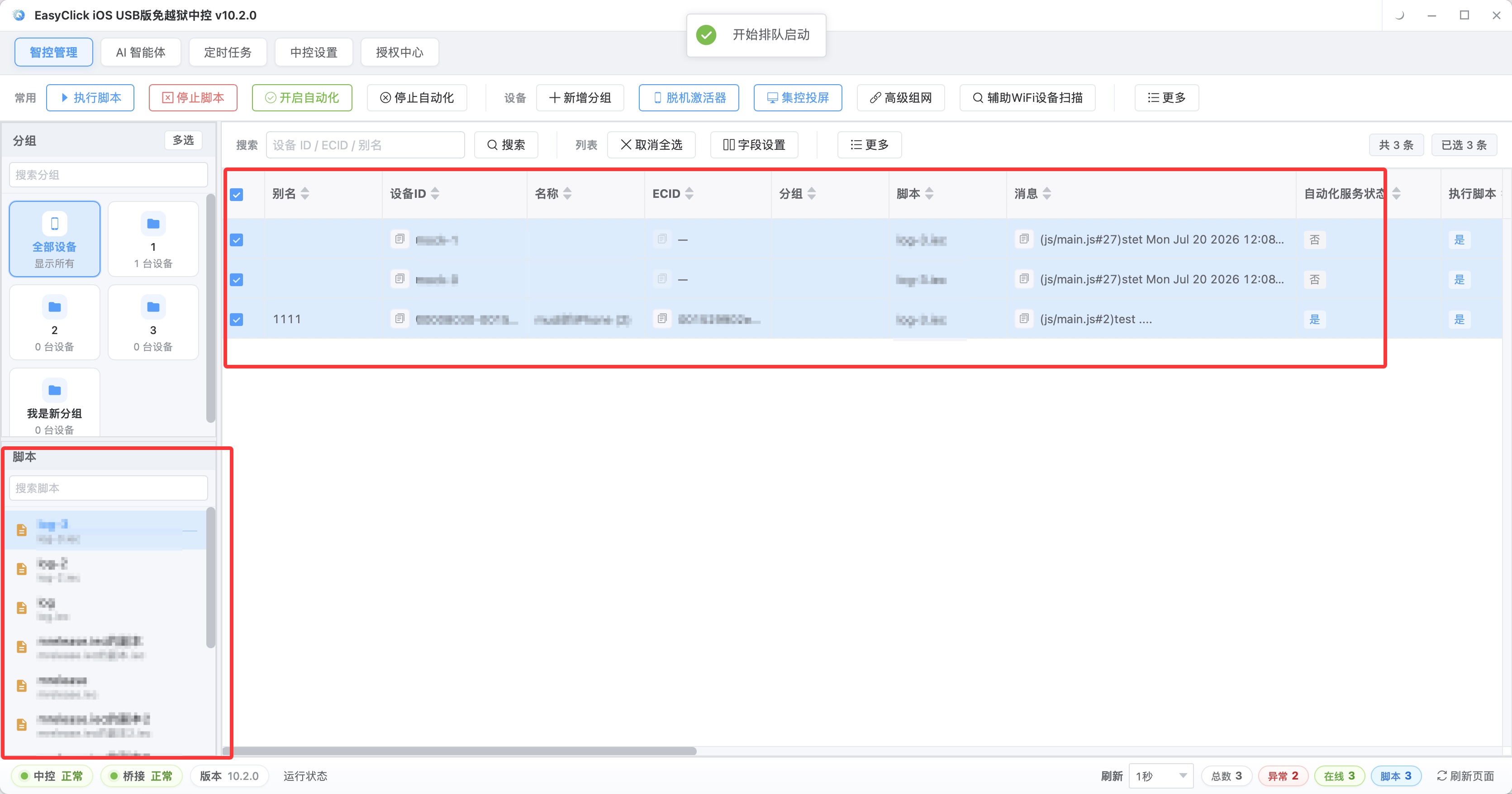
Running a script in the EasyClick console: the left side is the device list, and you tick the target devices; the right side is the script list and the parameter panel. After you choose, a double-click triggers the run. There is no command line to type and no environment variable to set.
Step 1, record. Open the platform’’s recorder, do the operation once by hand, and it generates an action sequence. Move a little slowly, and walk the path only once. Play it back after recording and see which steps reproduce, which miss as soon as the coordinate target moves, and where the wait is too short. That gives you a direction before you edit code.
Step 2, change the parameters. Change hard-coded coordinates into a lookup by control ID or text, and change a fixed wait into continuing when the element appears. Recorded coordinates and fixed delays are the first things to break. After the change, a different resolution or a slow load can still keep going.
Step 3, add protection. If an element is missing, retry 3 times, and if it still fails, take a screenshot and exit, so it does not run empty. Popups, network delay, and ad pages all show up, and a script with no protection stops at the first one.
String the three steps together and a stable starter script usually looks like this (pseudocode):
1. Open the app (start it by package name / app name)
2. Wait for the "home" element to appear (timeout 10s, retry twice if it does not appear)
3. Tap the "start" button (match by text first, then by id if that fails)
4. Handle popups in a loop: up to 3 times, close a popup each time one is found
5. Check the result: assert that the target page was reached
6. Save a screenshot, write a log, finish
Step 4 handles popups. Ads, update prompts, and permission requests all interrupt the main flow, so close a popup when you find one. The wait in step 2 needs an upper bound, and step 5 has to check, after the tap, whether the target page was reached. Tapping without waiting, and tapping without looking, means the script can run and a person still will not trust it for use.
What a few key parameters mean, and what to use:
| Parameter | Meaning | Suggestion |
|---|---|---|
| Timeout | The longest wait for an element | 10-15s for network flows, about 5s for local flows |
| Retry count | The retry ceiling after a failure | 2-3 times is enough; more amplifies the fault |
| Targeting method | How you find an element | control id > text > description > coordinates |
| Keep screenshots | Save the scene on failure | Must be on; troubleshooting depends on it |
The last row, screenshots, is the one beginners miss most often. During debugging, screenshots plus logs can return you to the failure scene. With no screenshot, the cause of a failure is a guess.
Debugging and tracing errors
Debugging rests on three things: step-through and the live log, to see which step failed; screenshot comparison, to confirm the interface state; and the control tree, to see whether targeting is stable. Get “open the app” and “wait for the home page” working first, then add steps. Put the step name in the log. If targeting is inaccurate, grab the control tree and look at the actual id and text. Change one place and test that place. Common errors and how to handle them:
| What you see | Common cause | What to do |
|---|---|---|
| Element not found | The element has not appeared yet, or it has been removed | Lengthen the wait, check the targeting condition |
| Several elements matched | Repeated text (list items, fields with the same name) | Add a parent constraint, or target by index |
| Tap does nothing | The element is covered, or it cannot be tapped | Check for a popup covering it, and wait until the element can be tapped |
| Script timeout | The flow was interrupted unexpectedly | Split the script, and add exception branches |
| Permission not enabled | Accessibility or mirroring authorisation has expired | Authorise again, and add a check that the service is alive |
Look first at which step the symptom happens on. After the log points at a step, check in this order: whether the element is there, whether the targeting condition is right, whether the timing fits, and whether the permission is on. If many edits still leave it unstable, stop and look at the control tree again. That is faster than continuing to tune parameters.
Publishing, batch runs, and common misconceptions
Publishing has three paths: run it directly on one device; for a batch, dispatch through cluster control or the console; for unattended running, add a scheduled task and a failure alert. From a single device running cleanly to a stable batch, run it once on several models and system versions, pull success, failure, and timeout from each device back to the console, make a failure traceable to a device, and configure the schedule and the alert. Before you dispatch, check that system version, app version, and permissions match on each device. One expired authorisation or one app that was not upgraded, and the same script produces a completely different result. After launch, watch the failure rate. App updates and system upgrades both invalidate scripts, so spot-check the running state once a week.
A basic script can run from a recording plus parameter edits. Loops and conditions are when you learn syntax. Coordinates fail when the resolution changes, the layout shifts, or a popup appears, and control targeting is steadier. A recording is only a first draft. You still change parameters, add protection, and verify on several models. Three lines that do the job are enough, and ten lines are extra. When it will not run, check targeting, waits, and permissions first. The script has to change along with the app and the system.
About EasyClick: A mobile automation script development platform covering three phone ecosystems: Android without root, iOS without jailbreak, and HarmonyOS. It also offers Apple script writing, Apple cluster control, Android cluster control, remote cloud control, and AI phone cluster control. → Explore all products
Ready to build it for real?
Every approach in this article can be built on the EasyClick phone automation platform — full documentation, developer tools and cluster/cloud-control products, free to try.