Apple cluster control is one computer managing many iPhones at once: screens viewed together, tasks dispatched by group, results collected in one place, with no jailbreak. From central control 10.6.0 (2026-09-02), the AI agent was renamed iEasyRun. The site is https://ieasyrun.com . This piece covers how device information is handed to an AI assistant, and how far MCP can query today.
Some things look small on their own and get annoying once you do them a dozen times a day. You are managing dozens of iPhones, writing a script in the editor, or talking with an AI assistant about which batch to run first today, and you suddenly want one confirmation: how many machines in the content group are online right now? The normal path is a window switch. Open the iEasyRun workstation, open the Devices page, scroll the list, find the group, count, then switch back. The local MCP in iEasyRun is meant to skip that motion.
Once MCP is connected, the AI assistant can read the device list
The workstation can expose a local MCP service. Configure it in an MCP client such as Cursor or WorkBuddy, and the AI assistant can read your device list and workflow list. You ask once, and it fetches the data from the workstation. The entry is the workstation capabilities page. Scroll down to local MCP. There is a local address, usually shaped like http://127.0.0.1:9866/mcp. Copy it into the client’s MCP config. The address is local, so only a tool running on the same computer can reach it. Another machine cannot. The configuration details are written out more fully at https://www.ieasyrun.com/docs/mcp .
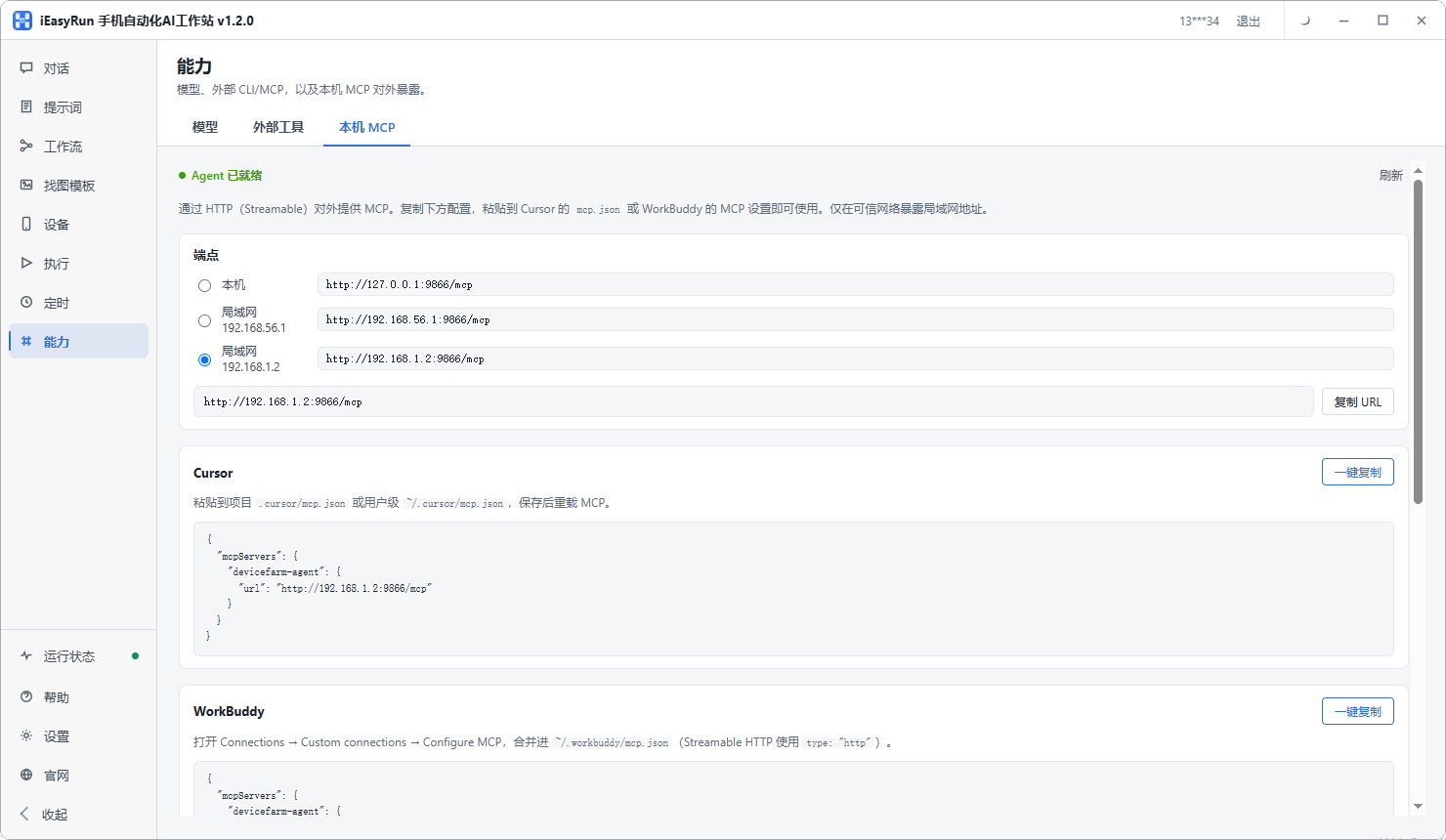
After it is configured, the AI assistant can read the device list and the workflow list. Ask once, and it fetches the data from the workstation. Those queries are what it can do.
The tools exposed today are all queries, four in total: list_devices lists devices, list_device_groups lists device groups, list_devices_by_groups lists devices by group, and list_workflows lists workflows. They look small, and together they are enough. To confirm whether a device is there, use the first. To look at a batch of machines by purpose, get the groups first, then query by group. To see how many workflows have been saved and what they are called, use the fourth. For someone writing scripts, the use is mainly confirming state. Halfway through a script you want to confirm the target device is still attached. Before changing a workflow you look at what is already in the library so you do not build a duplicate. Both take a few seconds.
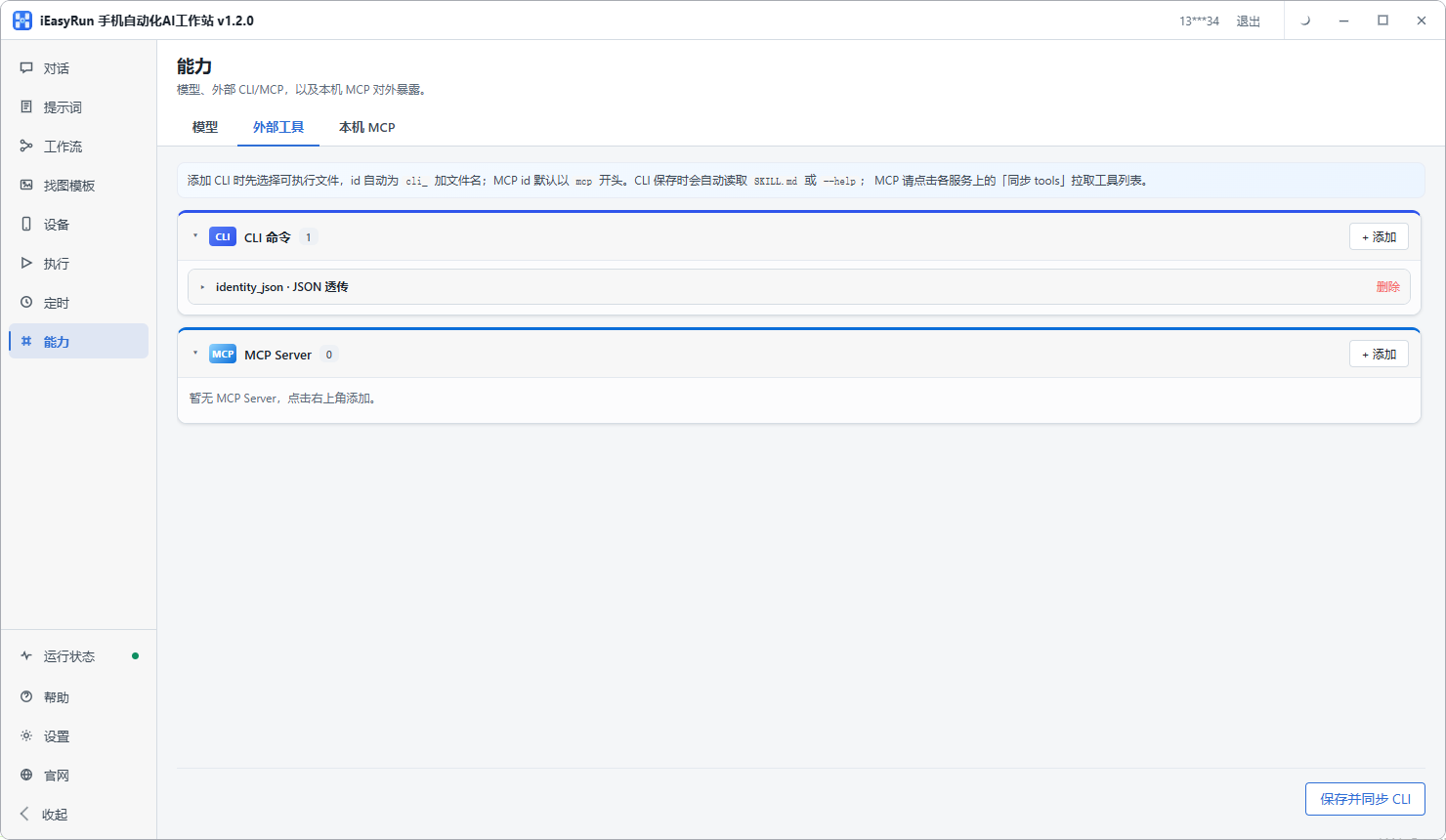
Once device groups are sorted out, the value of this step gets larger. If dozens of machines sit in the default group and the names are still the raw names from the scan, the AI assistant can still query, and what comes back is a pile of entries that look alike. You still have to tell which device is which. After the device count reaches the dozens, how you group them is a real problem. Measured capacity of Apple cluster control talks about how to organize once the scale is up, and it is worth reading alongside this. There is also an easy mix-up. The capabilities page has two directions related to MCP. Local MCP hands the workstation’s devices and workflows out for Cursor and WorkBuddy to use. The other way around, the AI inside the workstation can also connect to an external MCP service and bring outside tools in. The two sit next to each other and look alike. Their jobs are opposite. Do not click the wrong one while configuring.
Actions beyond queries are outside these four tools.
Taps, swipes, and running workflows are outside MCP. The AI assistant can tell you which device is online. It cannot tap on that device. To make the phone move, go back to the workstation: on the chat page, pick an online device and say the job in plain language, or open the workflow library, pick the device and parameters, and run it.
A query does not change anything on the device. The worst case is information that is a few seconds slow. Once execution goes wrong, what is on the screen can be tapped into a mess. So queries stay on the AI assistant side, and execution stays in the workstation’s chat and workflows. Some people say a couple of sentences in the AI assistant will make the phone move on its own. There is still a step in between: the words have to become a chat or a workflow inside the workstation. MCP does not take that step.
Who should connect it, and the boundaries to check first
Teams that already have dozens of devices and groups that are already sorted out will find this a smooth fit. Devices grouped by purpose, with aliases, give the AI assistant answers you can read directly, with no guessing which machine D023 is. The other fit is people writing scripts in Cursor or WorkBuddy. The workspace and the device state are already on one screen, and being able to check a device in passing does save time. If you want to see how this chain is built from a conversation all the way to a physical action, read the full flow of an AI agent controlling a real device.
The other way around, two kinds of people will most likely be disappointed after connecting it. If device groups are a mess, the problem is in the devices you have not organized. Filling in aliases and groups first is more useful than configuring MCP. If the hope is “speak and the phone operates,” that hope sits on chat and workflows, and it does not sit on MCP. Expecting MCP to do it points the wrong way from the start. If you only have three to five devices and a glance a day tells you the state, switching windows costs almost no time, and the time saved by configuring a client often fails to cover the setup. You can leave it unconnected for now.
There are a few boundaries. The workstation has to stay open. The MCP service follows the workstation, and once the workstation closes, the tools on the client side all stop working. The computer has to be the same one. A local address cannot be reached from another machine. If you work remotely, decide first which machine the workstation runs on, and whether that machine’s on-and-off habit can match. Devices have to connect in the central control first and be visible on the Devices page. If they never appear, they cannot be queried. That is a precondition, separate from whether tasks are running. After you change the config, remember to reload the client. About half of the “configured but nothing comes back” cases come from that.
If you need to check device state at any time, connect MCP. If you need the phone to perform an action, use chat and workflows inside the workstation.
The install entry is here. The workstation and the configuration that follows are in the same flow:
- iEasyRun site and install: https://www.ieasyrun.com/docs/install
- iEasyRun docs: https://www.ieasyrun.com/docs
- Apple cluster control system overview: https://ieasyclick.com/apple_qunkong/
- EasyClick developer docs: https://ieasyclick.com/docs/
- Further reading: Apple cluster control with iEasyRun: a full plan for driving a batch of iPhones with AI, Before using Apple cluster control, decide whether your business actually fits
About EasyClick: A mobile automation script development platform covering three phone ecosystems: Android without root, iOS without jailbreak, and HarmonyOS. It also offers Apple script writing, Apple cluster control, Android cluster control, remote cloud control, and AI phone cluster control. → Explore all products
Ready to build it for real?
Every approach in this article can be built on the EasyClick phone automation platform — full documentation, developer tools and cluster/cloud-control products, free to try.