Apple cluster control is one computer managing many iPhones at once: screens in one place, tasks sent by group, results collected together, with no jailbreak. From console 10.6.0 (2026-09-02), the AI agent was renamed iEasyRun. The site is https://ieasyrun.com .
Once there are many devices, the device list in your head is the first thing to fail
With three to five machines you still have a sense of which one is running what, and which one failed to connect yesterday. At thirty to fifty, that changes: a device that was fine yesterday may never have come online today; a script on one machine is stuck on a popup, the screen still showing yesterday’’s page, and you will not know unless you open it.
The worst part is not knowing which one failed. The real discovery often waits until a whole batch of tasks fails together, and tracing the cause shows that several devices had already dropped while tasks were still queued on them. Inspection is about knowing which one is off first. Repairing the device comes later. Online status, whether a task is stuck, and whether there is an error can be handed to a tool to record. Plugging a cable, changing a port, and whether to stop a group stay with a person.
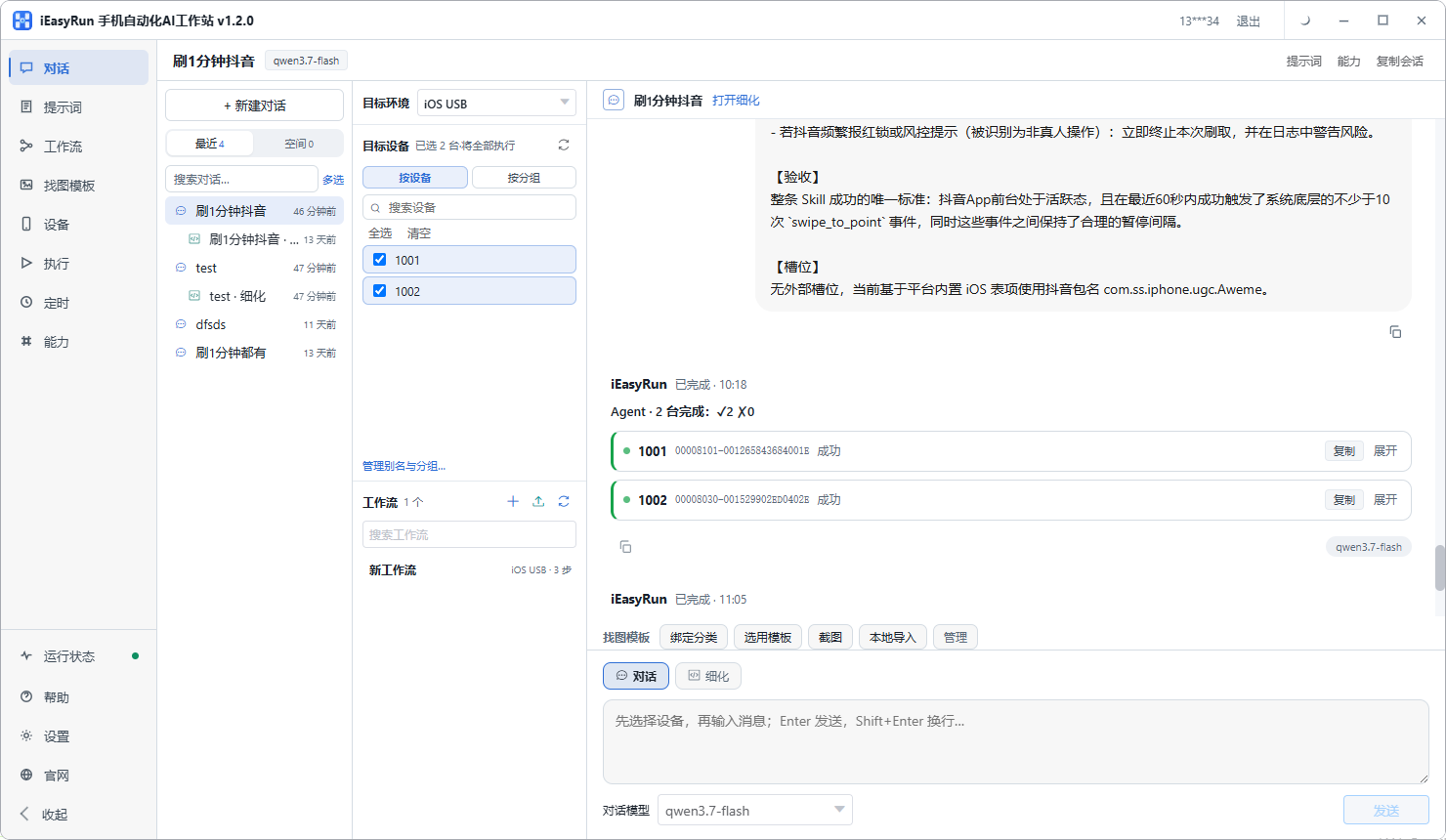
The screenshot is the ledger left after each run: which one ran, how far it got, and what error it reported. A look through it usually lines up, and most of the raw material for inspection is here.
What signals inspection watches, and which go to AI
The status on the Devices page is the first thing to look at. Offline devices cannot run tasks. That is a hard rule. If it cannot connect, it cannot connect. Open the Devices page and scan which devices have a bad status before you look at detailed actions.
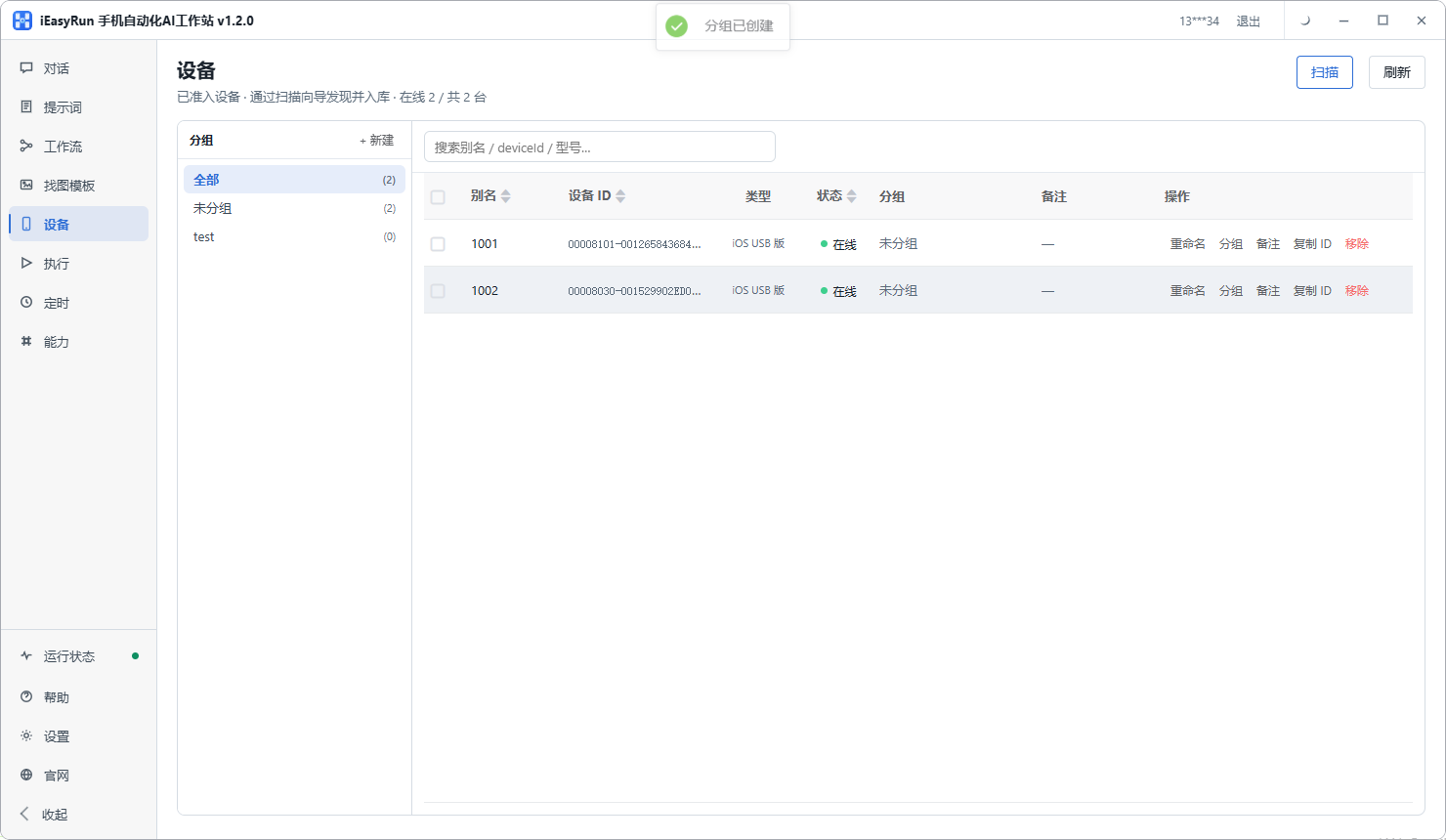
After devices are scanned in, group them by purpose and give them names you can recognise. Later troubleshooting is much faster.
The second kind is whether a task is stuck, which online status alone will not show. The device is online, and the script has sat on one step for a long time. The interface will not raise an alarm. You have to read the execution history for the state each task ended in. The third kind is whether there is an error. Execution history keeps the error from every run. When you read it, look for the same kind of error coming back. A one-off failure is usually a network blip. Several in a row usually mean the step is written wrong, or the interface changed.
The part you can hand off is automating “run a check once and write the result down.” If you need to confirm every day that the app on that batch of devices still opens, or that a page can still be reached, that kind of work has fixed actions and a clear standard for the result. Make it a workflow, put it on a schedule, and read the execution history when it finishes. Which device failed is obvious. To actually run it on a device, use the workstation chat to describe the actions, or pick the devices in a workflow and run them directly. When you are new to it, hold off on making a workflow. On the chat page, pick one online device and say the actions one sentence at a time, such as “open the app, wait two seconds, enter the home page.” Run it two or three times, confirm it reproduces reliably, then move it onto the workflow canvas and save it as a template. When it sticks, you know which sentence it stuck on, and the edit has a target. One precondition is easy to miss: scheduling is local, so the computer stays on and the workstation stays open.
The part you cannot hand off looks like this. Physical actions stay with you. When a device drops, plugging a cable, changing a port, and power-cycling are things only a person can do. The software cannot see the plug. Whether to swap a device, and whether to pause a group, stay with you too. A tool can tell you a machine has failed many times in a row. Whether to swap it, and whether the problem is the device or the task, is your call. Devices wear with use, and those judgements have to be made against the device’’s actual state. What long-term Apple cluster control does to the controlled phones covers that maintenance rhythm. There is a quieter kind as well: the task is still running the old steps. The interface was redesigned, the flow changed, every run finishes, and the result is wrong. Execution history will not show it, because there is no error. Spot-checking a few results by hand on a regular basis is more useful than only looking for errors.
The right signals still fail if the rhythm is wrong. Some people start with a pass morning, noon, and evening, and two weeks later they only look when something has already broken. A frequency set too full is hard to keep. Set it lower, low enough that you are sure you will do it.
Start with one fixed action a day: two minutes on the Devices page before work, a count of how many are offline, and a filter of the devices you will use that day. Then turn the checks you have to repeat into a workflow, put it on a schedule, run it at a fixed time, and let the results land in the execution history. You read the record once a day and look for a cluster of failures. How to arrange the schedule is described at https://www.ieasyrun.com/docs/schedule . On a weekly cadence, do one thing: group the errors that keep appearing in the execution history and see whether they share a cause. A pile of errors looks chaotic, and after grouping it is often two or three kinds, so one fix clears a batch. Dozens of devices failing at the same time still need a person watching the screen. A scripted check on its own is not enough.
A few places are easy to misread. One is treating “it finished” as “it was right.” No error does not mean the result is right, especially on tasks that change data, so decide how you will check before you run. Two is treating an online device as everything being fine. Online only means the connection held. It does not mean the app stayed up or the page stayed the same. Three is mistaking a task problem for a device failure. The same batch of tasks failing on many devices at once means you read the error first. It is usually the task or a changed interface. Finish that check before you open a device. Four is spreading the inspection too wide. A full check of dozens of devices is costly for one pass, and most of the time it is unnecessary. Look at representative devices by group first, and run a full sweep on the groups that matter. That is what lasts.
Once the device count is up, fix the quantity and the groups first. You can continue with a measured look at Apple cluster control capacity.
The install entry is here. The console and the workstation are in the same flow:
- iEasyRun site and install: https://www.ieasyrun.com/docs/install
- iEasyRun docs: https://www.ieasyrun.com/docs
- Apple cluster control system overview: https://ieasyclick.com/apple_qunkong/
- EasyClick developer docs: https://ieasyclick.com/docs/
- Further reading: What does Apple cluster control actually cost? A full budget from device purchase to batch operations, How do you choose an Apple cluster control system? A 2026 side-by-side of iOS cluster control options and the traps to avoid
About EasyClick: A mobile automation script development platform covering three phone ecosystems: Android without root, iOS without jailbreak, and HarmonyOS. It also offers Apple script writing, Apple cluster control, Android cluster control, remote cloud control, and AI phone cluster control. → Explore all products
Ready to build it for real?
Every approach in this article can be built on the EasyClick phone automation platform — full documentation, developer tools and cluster/cloud-control products, free to try.