Apple cluster control is a way for one computer to manage many iPhones: screens viewed together, tasks sent by group, results collected in one place. It avoids jailbreak. The mainstream approach drives devices by injecting external input. Teams that run Apple cluster control have two kinds of daily work. One kind has to run every day. The other shows up suddenly. Everyone is already doing the first kind: scheduled posts, batch setting changes, scripts started and stopped on a clock. It has a pattern, and it is worth writing a proper script. The second kind is often skipped: an app changed a permission rule, and a batch of machines needs the switch set again; a post has to go out once; a few numbers on the screen need to be copied and totaled; before a new version goes live, a few machines are spot-checked to confirm something still works. None of these is hard on its own. The hard part is whether it is worth touching a script for it.
The first account on a one-off job: writing the script can take longer than the job
The cost of writing a script is not the moment of writing. From an idea to a script that runs steadily, it has to pass several gates. Writing it is only the start. It still has to run on a real phone: did it tap the wrong button, did it wait too early, and will it freeze if one machine shows a dialog you have not seen. That debugging time has nothing to do with how long the task itself takes. It is a fixed cost. If the task runs once, that cost is never spread out. Two hours to write, one hour to tune, and the job itself might take twenty minutes. If the same job does not appear next month, those three hours are a pure outlay. Most of the time it does not pay. How to run this kind of account can be walked through next to the Apple cluster control cost calculator.
One-off tasks have a second problem: the requirement is often fuzzy. You have not decided whether “this situation should skip or continue,” and a script forces you to decide first, because the rule has to be written down. Sometimes that takes more effort than doing the job.
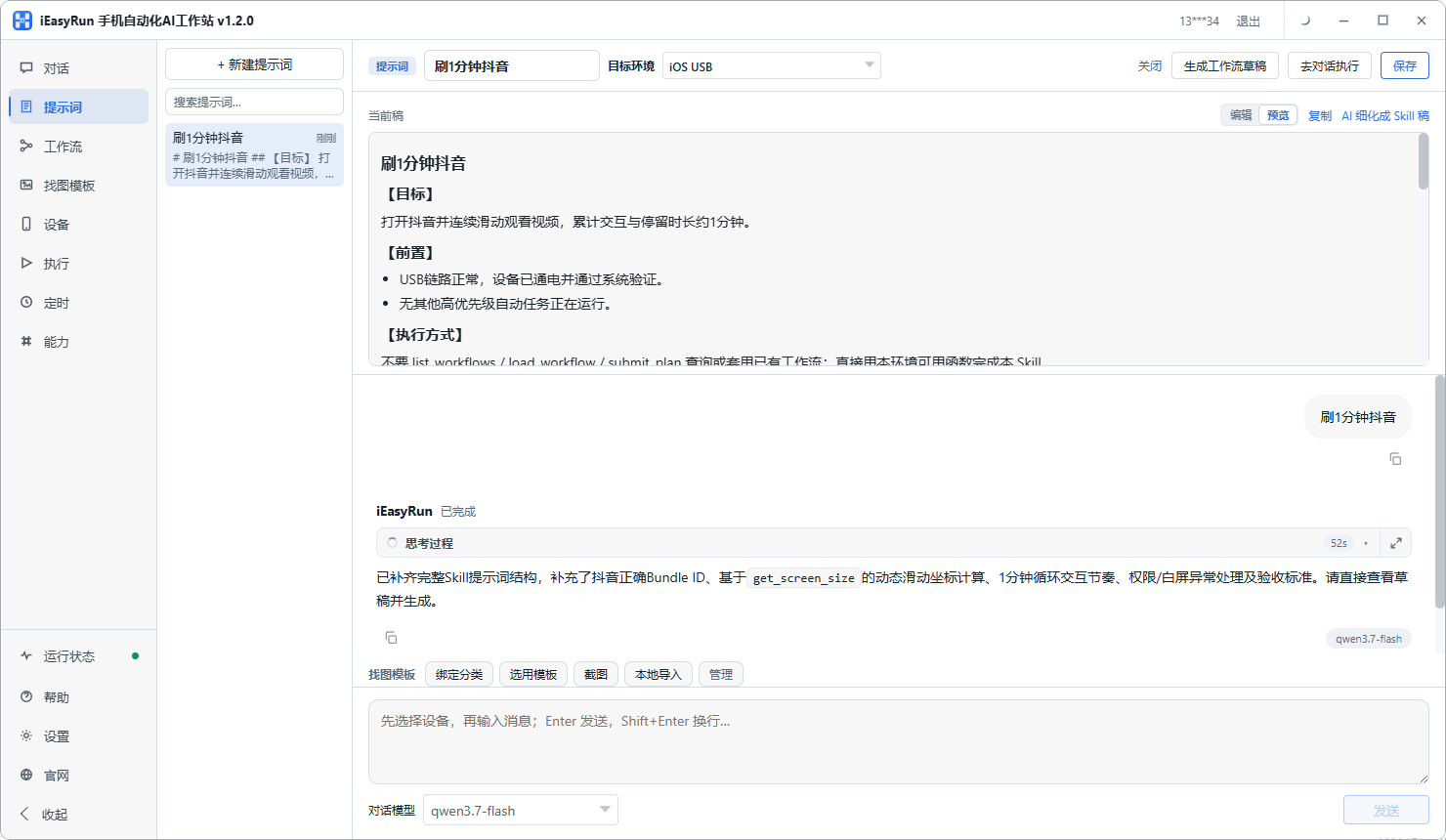
The picture is iEasyRun’s AI refine mode, which is aimed at that second problem. You do not have to write the whole requirement at once. State the rough version, and it straightens the steps before it starts.
Which jobs count as one-off
Common one-off jobs fall into about four kinds.
Change a batch of settings. A switch, a permission, a default value, set the same way on a number of machines, and then it is done. When it will change again is unknown.
Post one piece of content. This is the kind you post because something happened, separate from the kind that goes out on a daily schedule.
Export data once. Read numbers or text off the screen and collect them in one place. Copying dozens of phones by hand will blur your eyes, and it is not worth a full script.
Run one check. Before a new version or a new flow goes live, confirm on a few machines that a feature still works. How often depends on how often you change things.
The reverse is work that runs every day, work scheduled by the hour, and work where every step has to be identical. Those three are fixed flows. A script is the better fit.
Handing a one-off job off takes a few steps
Dispatching this kind of job in iEasyRun is a short sequence. Scan the phones in on the Devices page, add them to the library, and give them an alias, for example “verify-A” by purpose, and confirm they are online. Offline devices cannot run. That is the easiest thing to miss. Then go to the chat page, pick the target devices on the left, and type the task on the right. Three things in the description are enough: which devices, what to do, and what counts as done. For example, “on these three, turn off notification permission for a particular app, and take a screenshot when it is off.” If you cannot say it clearly, switch to AI refine mode and let it ask until the request is clear, then run. After it finishes, do not close it immediately. Look at the execution history.
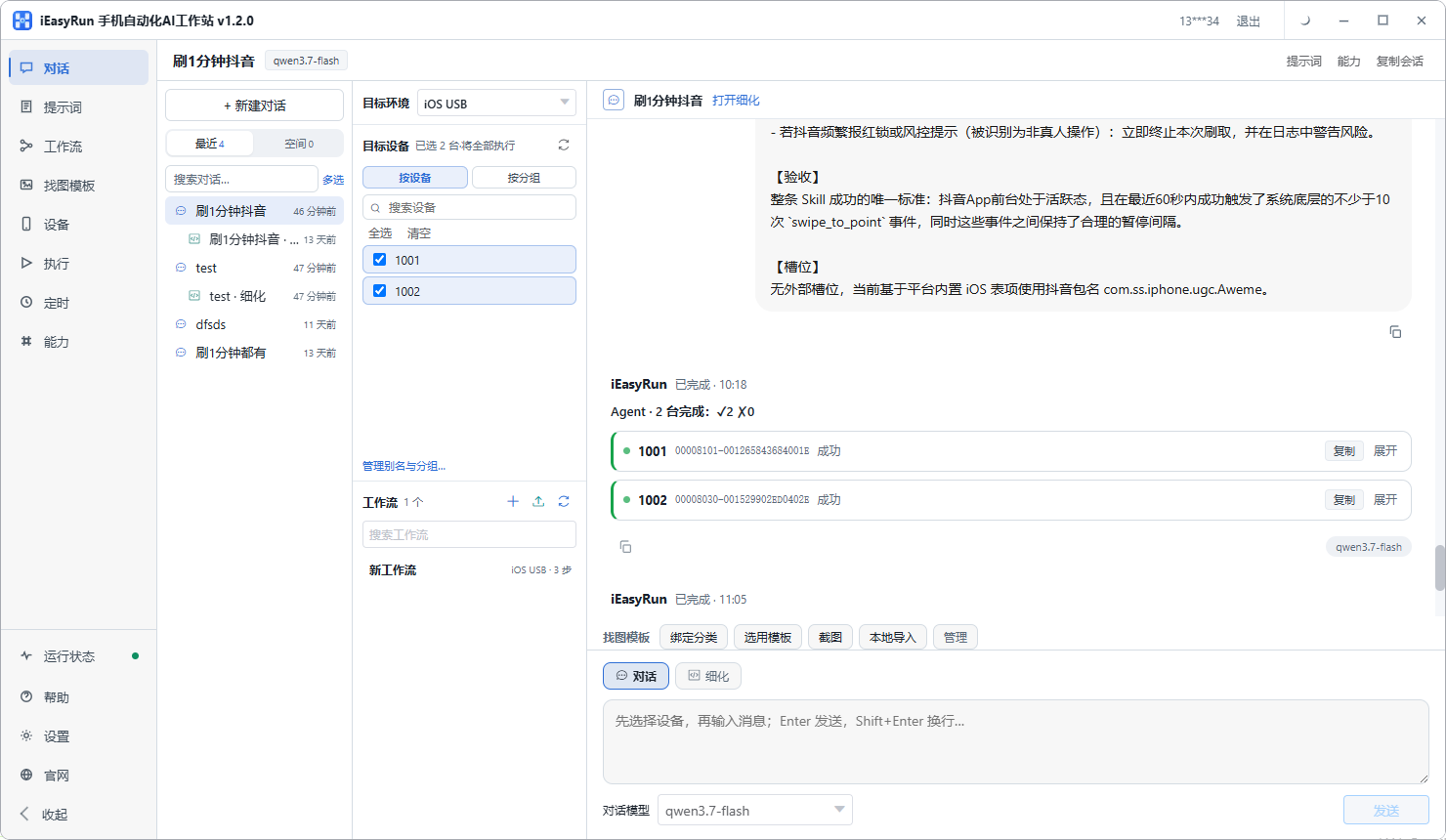
The picture is the execution history. What each device did at each step, and whether there was an error, stays here. The fear with a one-off job is “it seems to have run, and I am not sure.” This page is what removes that uncertainty.
In the task docs, every workflow run creates one task. The source can be saying “help me run…” in AI chat, “Run” on a workflow-library card, “Trial run” or “Run” after picking devices in the editor, or a scheduled task firing. One phone or many phones running at the same time still count as one task. The task panel is in the toolbar of AI chat or the workflow editor. Click “Task panel” to open it. Closing the window returns to the original page. The list keeps about the most recent 100 entries. A run in progress refreshes on its own. Each entry shows status, source (AI session, workflow editor, scheduled task, and so on), how many devices ran, how many succeeded and failed, and the time. The list is collapsed by default. Open a row to see the device detail. At the top is a concurrency summary: how many devices can run at once, how many are running now, tied to Settings → max devices per task. The status labels are: waiting, running, completed, failed, partial success, paused. Expanded, you can see which workflow each device is running and which step it is on. On failure there is an error note, and you can see the input, output, and screenshot of each step. When the flow stops for a person to handle a captcha or a manual confirmation, the status becomes paused. After you finish on the phone, go back to the task panel and click “Continue” for that device. If it is stuck, or you want to cancel, use “Force stop.” “Workflow layout” jumps to the editor and replays this run. You can also copy the task ID. In the editor you can trial-run again from a step, run only up to a step, or run the continuous steps you selected. In a formal task with a lot of OCR, the device’s OCR engine is released when the task ends, and the first OCR step of the next similar task may wait a few extra seconds. This flow does not leave an asset behind. You finish and leave. There is nothing to maintain, and an interface redesign does not break a script. If the same job will come back later, the description can be saved as a prompt. Next time, pull it out and change a few words. When a small icon on the screen is hard to recognize, you can also make an image-find template so it looks for the button by picture. That is a bit steadier than a text description alone.
When you should still write a script, and how to choose between the two paths
Some jobs fit a script better.
Work that repeats. Once a week or more, or every day, the fixed cost of a script is spread out quickly, and it pays more the more you use it.
Work that has to be precise. Timing, coordinates, and tap order are tight. A script follows the rhythm you wrote, which is steadier than a fresh judgment on every step.
Work with many branches that stay stable. The logic is complex, and each time you meet the same few situations. Writing them into a script is faster than asking AI to think on the spot.
Work that has to run for a long time with nobody watching. If it fails in the middle of the night and nobody is there, the certainty of a script is easier to live with, and the failure modes are easier to anticipate.
The judgment is whether this job will come back, and whether it comes back often enough.
There is another kind that looks one-off and is actually a trial of the path. Run it twice with AI, see what each step looks like and where it tends to fail, and then decide whether to write a script. That order is less work than writing it hard from the start. Many problems are only visible after one run on a real phone. Save a path that already runs as a workflow, and the next time you pull it out it is ready.
If you have one of these jobs on your hands, walk three questions.
Will it come back? If it comes once, do not write a script. Dispatch it in chat. If it comes several times a month, run it cleanly first and then save a workflow.
Is the cost of one failure large? If it is large, and you can anticipate every pit in advance, write the retry logic into the script. If the cost is small and the pits are hard to name, a judgment on the spot from AI is more practical.
Does someone on the team want to maintain the script? If that person exists, the script path is safe to use. If not, do not stake the job on a script. It will fail slowly as the interface updates.
Write a script for work that repeats. Use chat for work that shows up occasionally. After it runs cleanly, decide whether to lock it in. Whether your team’s repeated work is large enough to justify a tool, this self-test sheet can give an answer in a few minutes.
More resources: iEasyRun site and install https://www.ieasyrun.com/docs/install , iEasyRun docs https://www.ieasyrun.com/docs , Apple cluster control overview https://ieasyclick.com/apple_qunkong/ , EasyClick developer docs https://ieasyclick.com/docs/ . Further reading: How an AI agent runs on a real phone, Apple cluster control with iEasyRun: a full plan for driving a batch of iPhones with AI.
About EasyClick: A mobile automation script development platform covering three phone ecosystems: Android without root, iOS without jailbreak, and HarmonyOS. It also offers Apple script writing, Apple cluster control, Android cluster control, remote cloud control, and AI phone cluster control. → Explore all products
Ready to build it for real?
Every approach in this article can be built on the EasyClick phone automation platform — full documentation, developer tools and cluster/cloud-control products, free to try.