HarmonyOS cluster control means one computer managing and batch-operating many HarmonyOS devices (HarmonyOS Next). It belongs to the same class of tools as Android cluster control and Apple cluster control. Besides the default data cable, you can also use an ESP32 board over Bluetooth.
Why keep a Bluetooth path, and what to buy first
Once you have more devices, USB ports run out, cables pile up, and rack wiring gets hard to maintain. On HarmonyOS you can also use Bluetooth HID.
HarmonyOS Bluetooth HID is meant for that situation. The phone acts as the HID host: the computer or the central control connects to an ESP32 development board over serial or WiFi, and the board sends Bluetooth HID commands to the phone. The phone sees a keyboard. This path sits alongside the HarmonyOS automation script service, HarmonyOS screen mirroring, and USB HID. You can use it on its own or combine it with the others. Screenshots and image matching can go through the automation channel while taps go through the Bluetooth board. The control channel stays on its own and leaves the automation channel free.
You buy the board yourself. Taobao, Pinduoduo, and 1688 all carry them, and the firmware is free. Three choices have to be settled before you buy. Get one wrong and you reflash: chip model, ESP32-C3 or ESP32-S3, both supported, with separate firmware; board type, welded pins or unwelded pins, again with separate firmware; feature version, pick the build that includes a keyboard. HOME, key presses, and shortcuts all depend on keyboard HID. Without that build, system keys and shortcuts will not work.
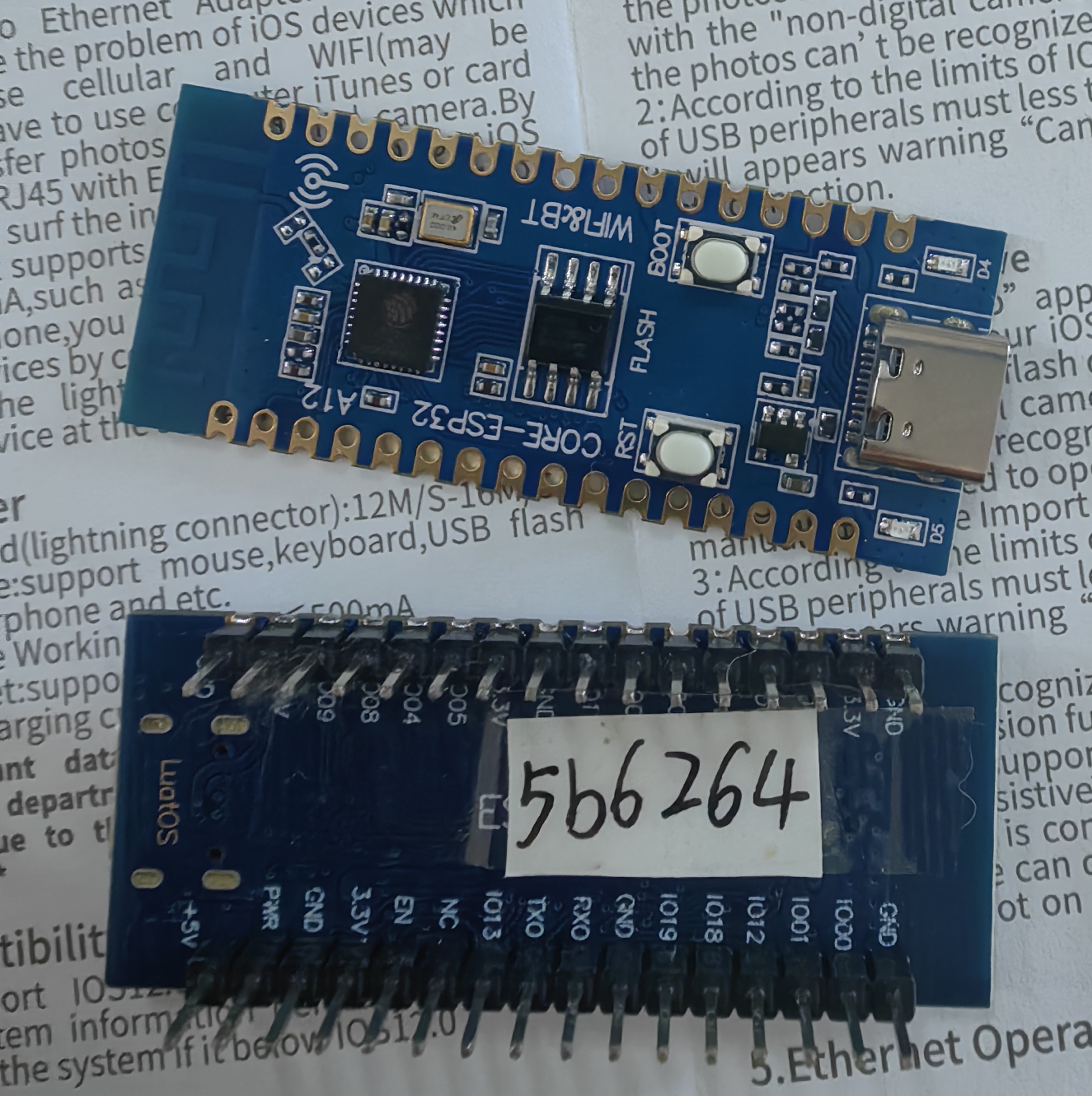
Firmware is in the product resources on the cloud drive, under the HarmonyOS resources folder, then the USB version, then Bluetooth firmware. One trap: do not flash the Bluetooth firmware built for iOS USB. That build is for boards on the iOS platform. The flashing steps themselves match Android.
Flash, bind, and test the path
After flashing, power the board again, then bind it in the HarmonyOS central control. Select a connected device, right-click into Bluetooth HID settings, and click bind Bluetooth BLE.
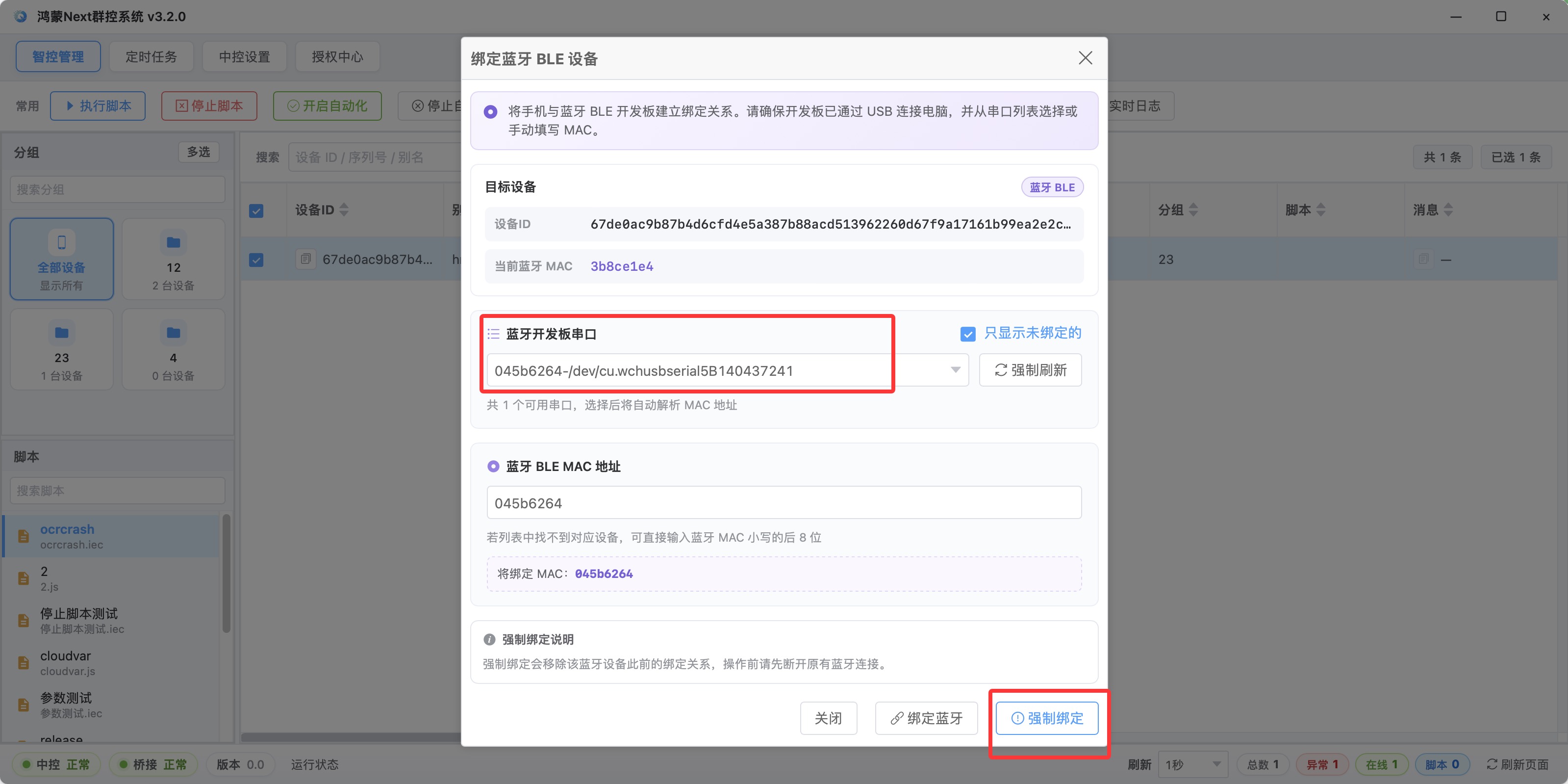
In the dialog, choose the serial port. If the list is empty, clear filters such as show unbound only, then force a refresh. If it still will not appear, type the last 8 characters of the Bluetooth MAC into the MAC field and the bind still works. Where does the Bluetooth MAC come from? The board’s Bluetooth name is usually the last 8 characters of the MAC, and the central control reads it automatically when binding a serial port. Label the board with those 8 characters as soon as it arrives, and put a matching label on the phone. That saves time when you manage many devices. After a successful bind, the Bluetooth MAC column in the device list shows the hardware address you just bound. The mapping is UDID to bleMac, one phone per board.
Do not jump into a script yet. Test the path first. On the phone, open Settings, Bluetooth, search for the board, and pair it. The name is the last 8 characters of the MAC, and the icon may show as a keyboard or a mouse. Then go back to the central control, right-click into Bluetooth HID settings, click test Bluetooth BLE, choose the transport (serial by default), and click touch-and-hold or the HOME key. If the phone reacts, the whole path is working.
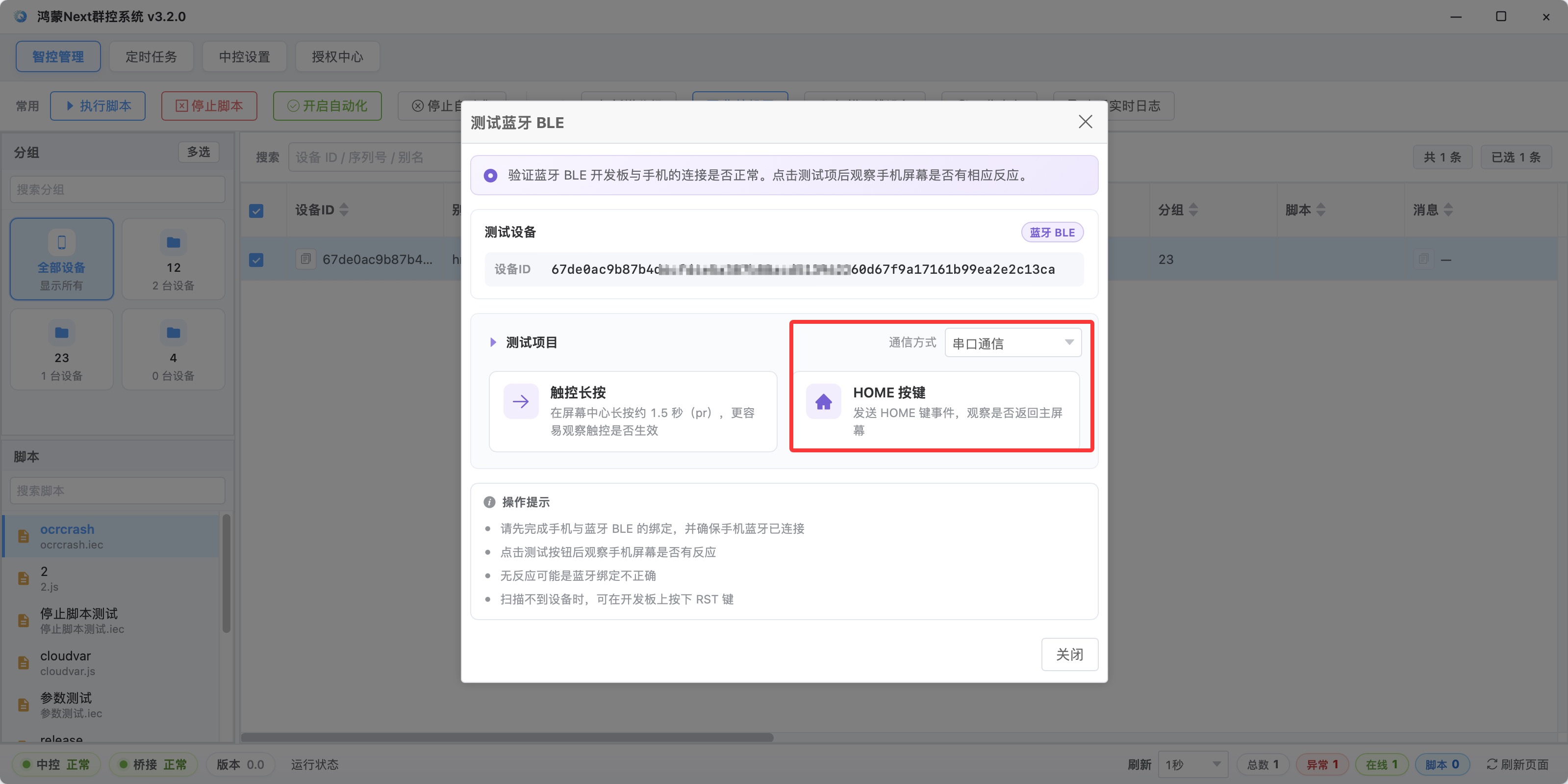
If nothing happens, try this order: forget the device on the phone and pair again, press RST on the board to restart it, then test once more.
The board and the computer have two transports, switched by different parameters in the script. Serial mode suits a board plugged directly into the computer and needs no extra network setup. Network mode needs the WiFi account and password written into the board first, after which traffic goes over the network. The matching entry in the central control is set WiFi information under Bluetooth HID settings. Restart the board after that. The central control scans for the board IP, and once the scan succeeds the hardware IP column in the device list shows it. You usually do not have to step in by hand. When the central control is running and the binding is correct, it scans on its own. Use serial when the boards sit near the computer, and WiFi when the boards sit next to the devices.
How to handle offset taps and failed connections
The Bluetooth setup has its own class of problems, separate from the cable setup.
Offset taps usually have three causes. The most common is that the script never called the API that sets the screen size. Bluetooth taps use absolute pixel coordinates. If you never tell it the screen width and height, the coordinates will not line up. After a switch between portrait and landscape, set the size again. The second cause is the wrong transport, for example a serial port that is already in use, or network mode selected when the board has no network configured. The third is a bound MAC that is not the board on the current serial port.
Failed Bluetooth connections follow a fixed routine: hold RST on the board for about 5 seconds, release it, forget the device on the phone, and search again. One board connects to only one phone at a time, and after a successful connection the Bluetooth name may disappear. Before rebinding, disconnect and forget the device on the phone, then press RST. The board’s LED pattern helps: a successful pair stays lit for about three seconds and then goes out, a Bluetooth disconnect blinks slowly about ten times, and a Bluetooth search blinks quickly about fifteen times. The lights tell you which state the board is in.
One more step is easy to miss. Finish pairing in the phone’s Bluetooth settings and keep Bluetooth on. If the system asks you to confirm keyboard, mouse, or input-device permission after pairing, tap allow. USB debugging under Developer Options is for automation and screenshots. It is a separate step from BLE pairing.
About EasyClick: A mobile automation script development platform covering three phone ecosystems: Android without root, iOS without jailbreak, and HarmonyOS. It also offers Apple script writing, Apple cluster control, Android cluster control, remote cloud control, and AI phone cluster control. → Explore all products
Ready to build it for real?
Every approach in this article can be built on the EasyClick phone automation platform — full documentation, developer tools and cluster/cloud-control products, free to try.