HarmonyOS automation means replacing repetitive manual work on HarmonyOS devices with programs. Devices connect through Developer Mode plus USB debugging, with no root and no system changes.
When install stalls, it is usually one of these seven places
The steps are four things: install the central control, plug in the cable, turn on automation, and buy a license. When it stalls, the central control is often already open and the cable is already plugged in, yet clicks do nothing or the mirrored screen is black. Seven places go wrong: the first three during install, the next two during connection, and the last two in licensing and exception handling.
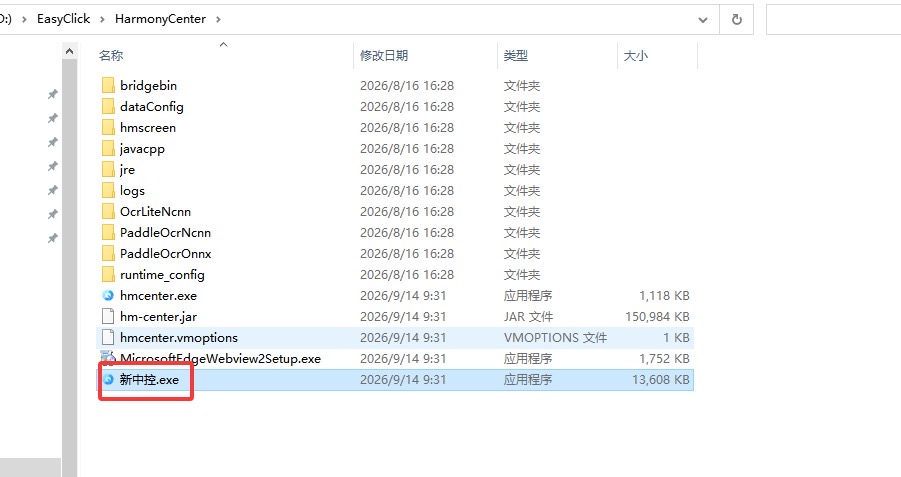
A normal run looks like this. In the product downloader, set My identity to ordinary user and tick HarmonyOS Next under platform version. On the components page, tick HarmonyOS Next cluster control and mirroring, and set the install directory to a plain English path. After install, double-click 新中控.exe and log in. Turn on Developer Mode and USB debugging on the phone, then plug in the cable. Select the device, click Start Automation, and confirm service status is Yes. Then buy a license and bind it, and finally open group mirroring to see the picture.
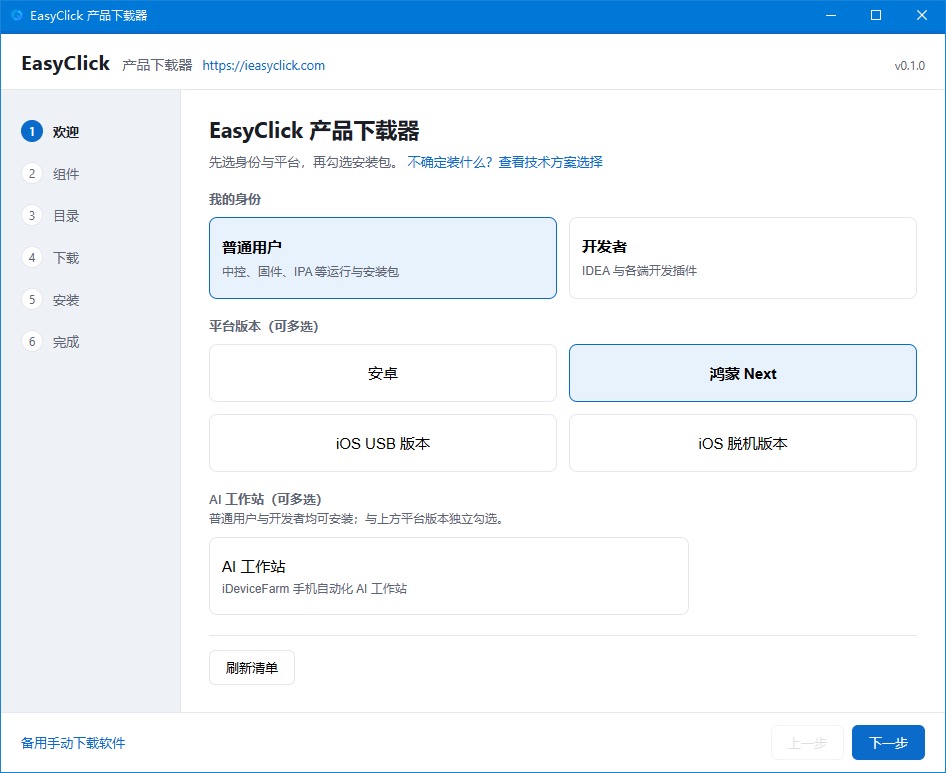
Pick the wrong platform in the downloader and everything after that is wasted. HarmonyOS Next, Android, and iOS ship as separate component packages. Tick the wrong one and you get a package you cannot use. Most of this long sequence is just clicking through. Two places need attention: every path must be plain English, and licenses come in two types, so do not buy only one.
The install stage has three of them. A component left unticked is the first. If HarmonyOS Next cluster control and mirroring is left unticked in the downloader, the central control still opens after install, but the mirroring section is empty or the mirroring entry is missing. The component was never installed. Rerun the downloader and tick it. A path that contains Chinese characters is the second. A default such as D:\EasyClick is the right kind of path. Chinese characters, spaces, or special symbols in the path can keep the HarmonyOS mirroring window from opening, or make the central control throw an error on startup. If you already installed into a Chinese directory, uninstall and reinstall to an English path. A status bar that stays red after the central control starts is the third. The PC is usually missing the VC runtime. Open the product downloader, install the VC runtime archive, unzip and install it, restart the computer, then double-click 新中控.exe and it will come up.
Connected but unrecognized covers the middle two. After install, the most common problem is no device in the central control.
The central control interface itself is fine and login works. The problem is almost always on the phone. Developer Mode and USB debugging being off is the fourth place. On a HarmonyOS phone, turn on Developer Mode first: open Settings, find About phone, and tap the version number several times until it says you have entered Developer Mode. Then go back to Developer options and turn on USB debugging. After you plug in the cable, the phone usually asks whether to allow debugging from this computer. Tap allow or trust. Skip any one of those three steps and the central control list stays empty. Service status not reading Yes is the fifth. A device in the list only means the connection is up. The script channel still has to be opened. Click Start Automation once and wait until service status in the list becomes Yes.
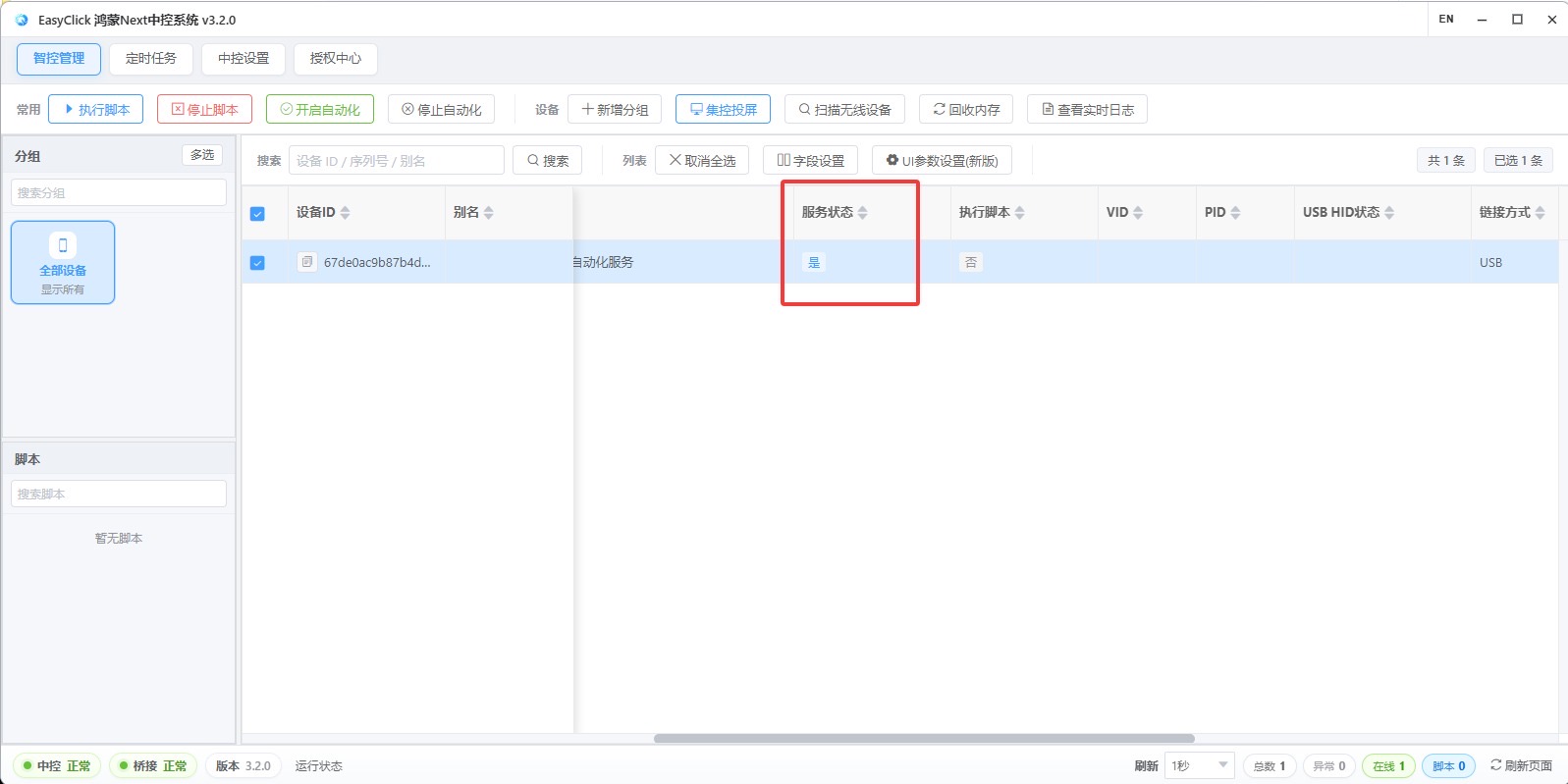
Service status Yes means both automation and the script channel are ready. If it stays at some other state after you click, go back to the phone and confirm the system has not taken USB debugging back. Some models turn it off after a period with no activity.
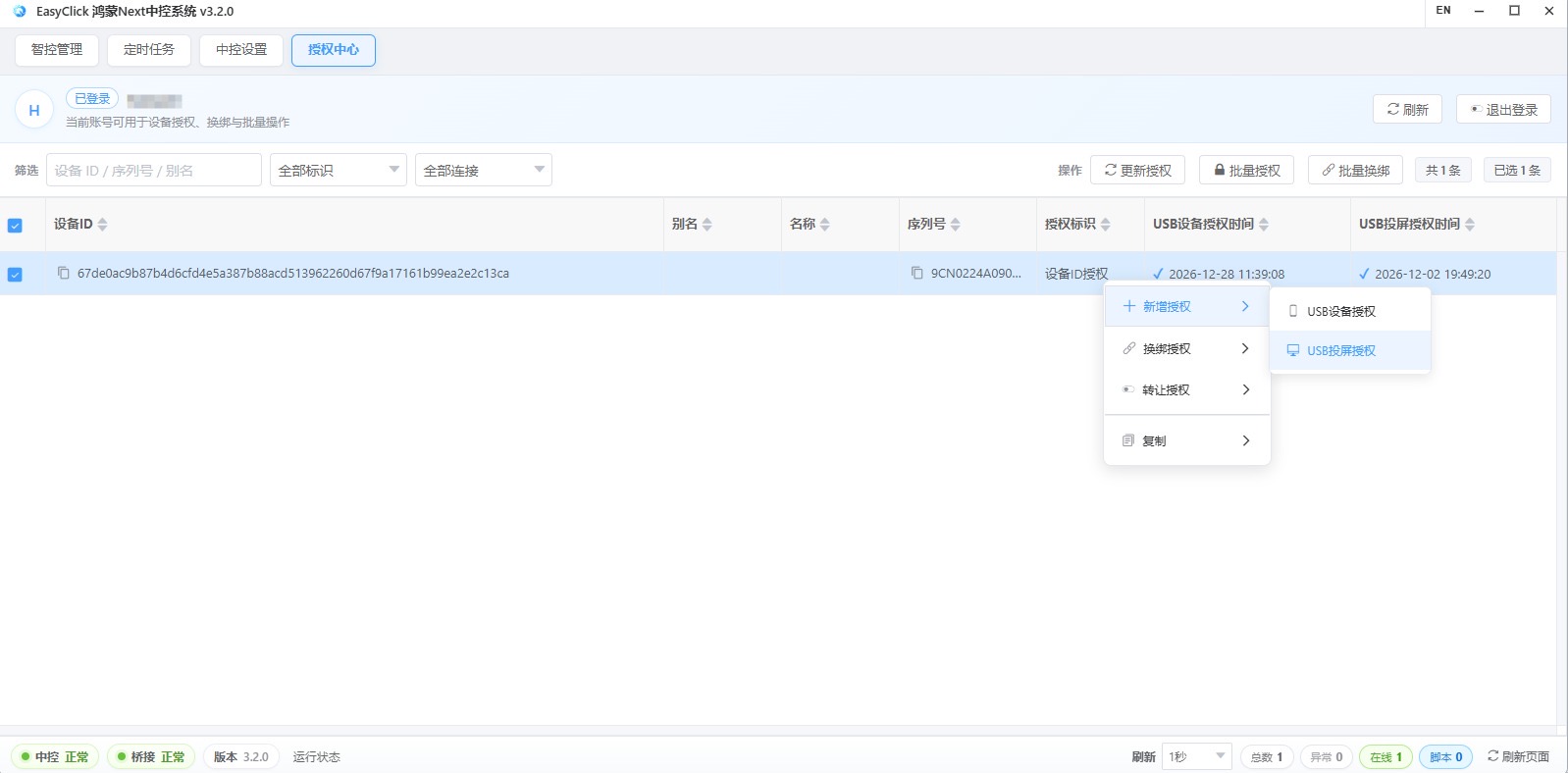
The wrong license and exception handling are the last two. Buying the wrong license type is the sixth. The HarmonyOS central control has two licenses, and they are for different jobs:
| License type | What it is for | If you buy the wrong one |
|---|---|---|
| USB device license | Running scripts | You can only mirror and watch the screen; scripts will not run |
| USB mirroring license | Mirroring and operating the phone by hand | Scripts can run, but mirroring is limited or will not open |
Teams that buy only the device license often report that scripts run but they cannot tap the phone by hand. That is why. Get both.
Restart first when something goes wrong. That is the seventh. Restart the phone, then quit the central control and open it again. USB port power swings, a cable with a bad contact, and the system taking debugging permission back are often outside what a settings change can fix. A restart often brings it back in two minutes.
How much time to leave the first time you set up HarmonyOS
Teams that already know Android or iOS cluster control move through this flow quickly. The habits carry over almost directly. The differences are mainly the component package and the license types. Teams that have never used cluster control should leave half a day for the first deployment and check the seven places one by one. Scripts can wait. Get one device from install through to a working mirror, then copy that to the other devices. Installing three at once makes it harder to tell a shared problem from a single-device problem, and the troubleshooting takes longer. HarmonyOS Next system versions move faster than Android. Confirm the phone’s system version before you connect it, and keep test phones and production phones on separate installs.
About EasyClick: A mobile automation script development platform covering three phone ecosystems: Android without root, iOS without jailbreak, and HarmonyOS. It also offers Apple script writing, Apple cluster control, Android cluster control, remote cloud control, and AI phone cluster control. → Explore all products
Ready to build it for real?
Every approach in this article can be built on the EasyClick phone automation platform — full documentation, developer tools and cluster/cloud-control products, free to try.