HarmonyOS cluster control is the same kind of tool as Android cluster control and Apple cluster control, with the devices switched to HarmonyOS Next: one computer manages them together, sends work out in batches, and collects results in batches. This article covers how to use screen mirroring, including master control, sync, and image transfer.
Mirroring is for seeing; cluster control also has to click. Entry points and scenes
Mirroring solves the seeing part. To act on the picture you still have to turn on HarmonyOS automation. Both have to be working before you can call it control. HarmonyOS screen mirroring lives inside the HarmonyOS central control. From a connected phone to a picture on screen is one chain: the device connects to the central control, automation is turned on, the mirroring client pulls the stream, and the master control window shows it. If any link is down, you get a black screen or clicks that do nothing.
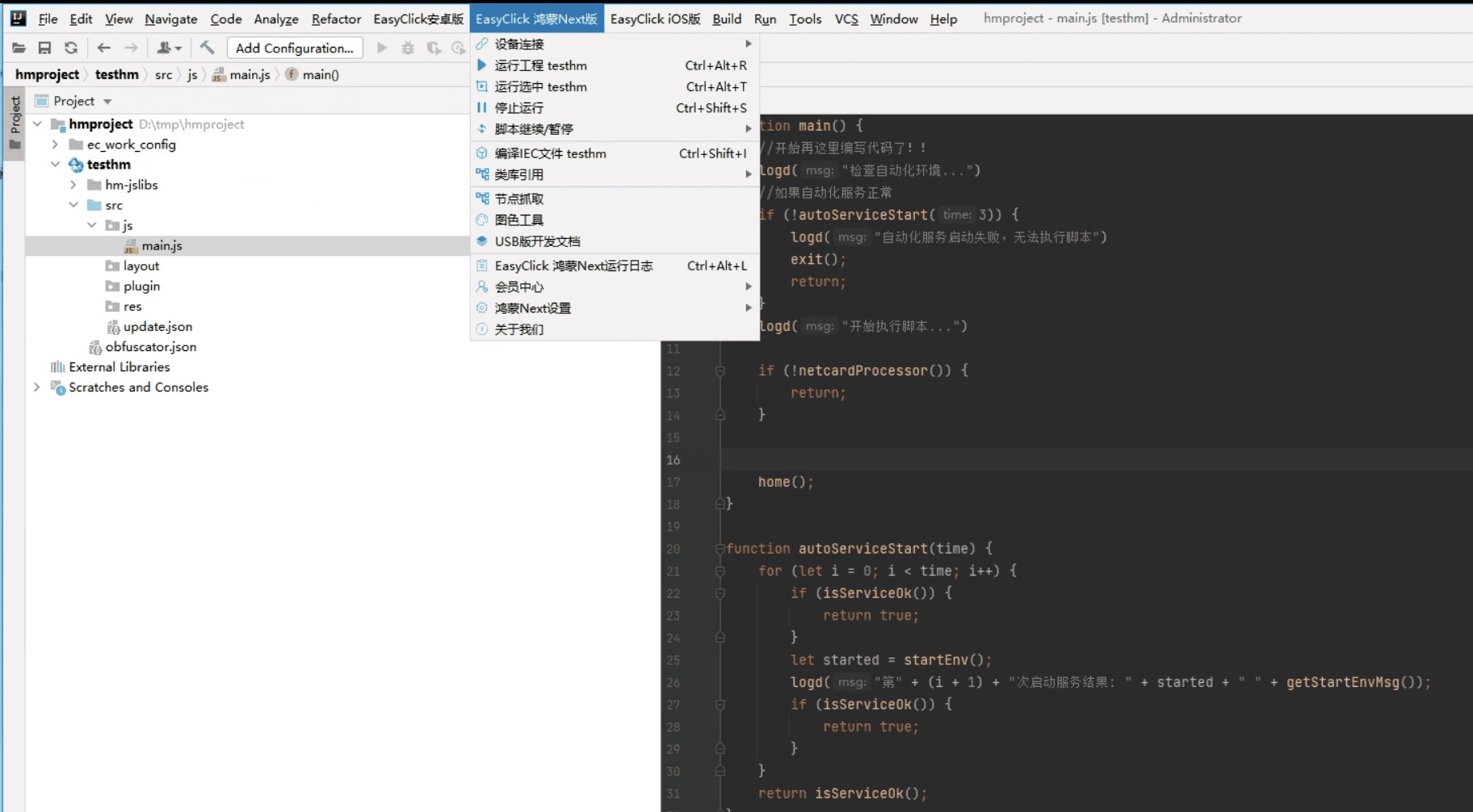
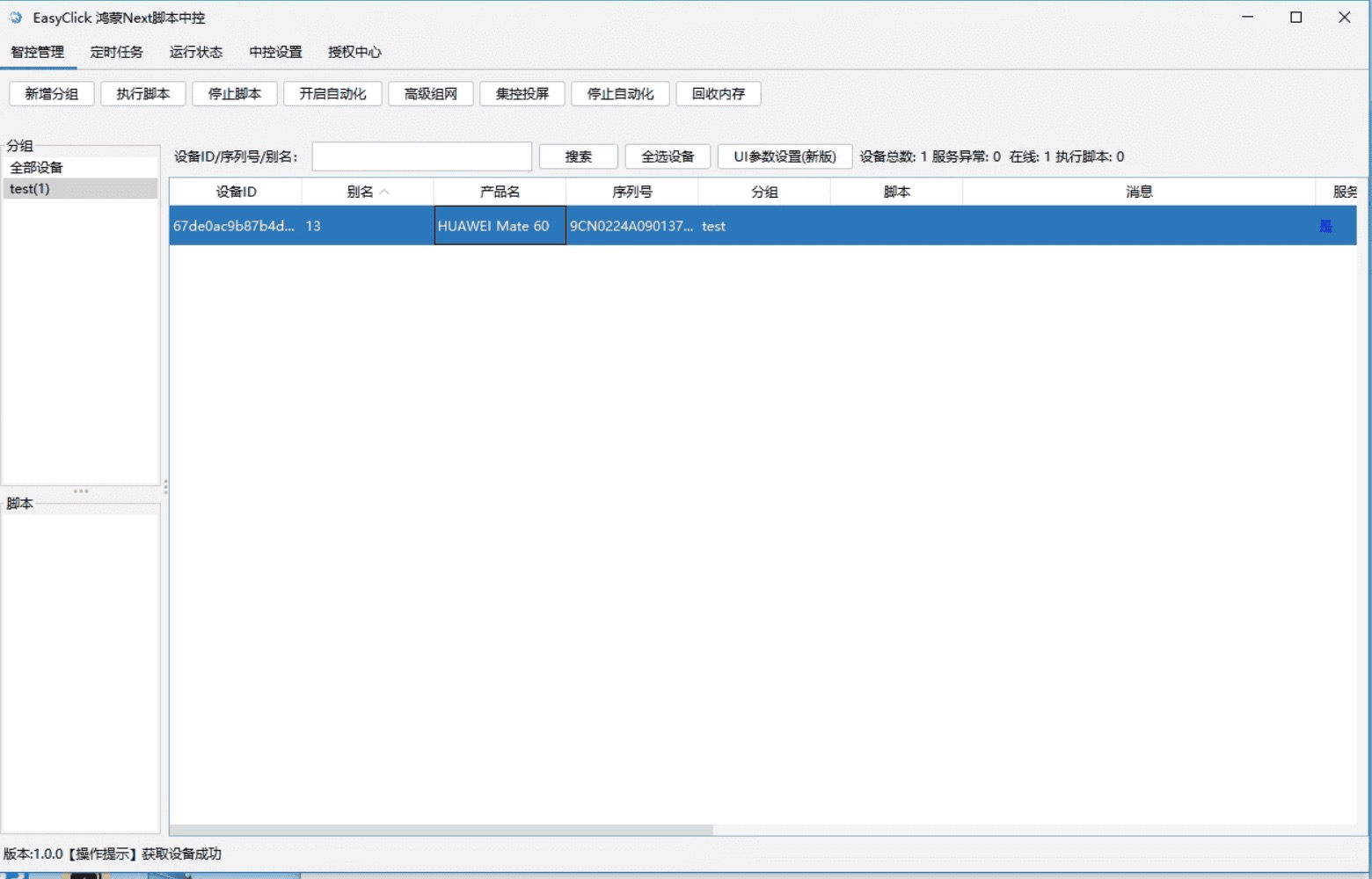
Open the new HarmonyOS mirroring client from the central control. Do not double-click the mirroring program on its own. That entry usually tells you to start the service first. The normal path is: double-click 新中控.exe and log in, confirm the device is already in the list and service status is Yes, then click group mirroring in the top toolbar and choose the new interface. The first time in, a short guide appears. Pick a light or dark theme and it is done.
Once you are in, the screen has four parts: the workbench and more on the left, the thumbnail grid in the middle, the master control area further right, and system settings at the edge. Day to day you only use the first two plus the master control area.
HarmonyOS screen mirroring has a setting other platforms do not: the mirroring scene. It decides which channel carries gestures. Under mirroring settings in system settings there are three options:
| Scene | Gesture method | Where it applies |
|---|---|---|
| USB + automation service | Proxy | Ordinary taps and swipes |
| USB + Bluetooth HID | Bluetooth HID | Gestures go through the ESP32 board |
| Custom | Choose by hand | When you need to tune the parameters |
The first one is enough by default. Switch to the second when a Bluetooth board is connected and you want gestures to leave through the board. With the wrong scene, the picture looks normal and clicks do nothing.
Master control, sync, text input, image transfer, and text recognition
In the thumbnail grid, each device is a thumbnail. To operate a phone directly from the computer, set it as master control first: right-click the thumbnail and choose set as master control. It then shows in the large area.
Actions on the master control picture can be copied to other devices. The sidebar has a sync switch. After you turn it on, taps and swipes on the master control are copied to the selected devices. Sync needs two things at once: the target devices have to be selected, and the control, mouse, and keyboard switches above the master control title bar have to be turned on as needed. Control is the master switch, mouse covers the pointer, and keyboard covers the keys. If only the master switch is on and the mouse switch is off, swipes will not sync. Sync random delay can be adjusted. During a batch sync, every device doing the exact same action in the same millisecond looks awkward. A little random delay looks more natural.
Typing has two choices: the system default goes through proxy input, and the other is follow HID. Ordinary work uses the system default. Chinese, long text, and emoji all depend on it. Choose follow HID only when a Bluetooth HID keyboard is connected and you want the key presses to leave through the board. For long Chinese text, switch back to proxy input. A BLE keyboard handles English fine and feels awkward for Chinese. Above the master control area there is an input box. You can type into it and send the text to the master device, which is useful for a quick caption change or one extra comment.
The sidebar workbench has a few tools that people doing batch publishing actually use. Image transfer and video transfer can pick a folder per device and upload in a batch, so you do not click through one phone at a time. The thumbnail right-click menu has the same entry. OCR is available in central control 3.1.0 and above, and the engine is PPOCR-v6. Pick the engine in system settings, optionally tick release resources after recognition, then right-click a thumbnail and choose recognize screen text. The main use is checking, for example recognizing the screen after a batch publish to confirm the copy really landed. Scripted replies are available from the right-click menu after you multi-select thumbnails, and multi-device scripts suit customer support. These tools do not require a HarmonyOS script. You can run them from the interface.
What to check first when the picture stalls
Mirroring stutter usually sits on the path. Look at the network first: whether bandwidth is enough, whether packets are being lost, and whether the wireless environment has interference. Those three account for most of it. On a LAN, prefer wired. On wireless, watch how many devices the router is carrying. Then look at the device. When the device is under a heavy load, encoding and streaming slow down and the picture stalls with them. Last, look at the computer. Pulling dozens of streams at once asks something of the GPU and the CPU. The sidebar has switch groups to save traffic. A group you switch away from stops pulling its stream. When the thumbnail grid is only for a glance at status, lowering the thumbnail resolution runs more smoothly than pulling streams at the main screen resolution.
About EasyClick: A mobile automation script development platform covering three phone ecosystems: Android without root, iOS without jailbreak, and HarmonyOS. It also offers Apple script writing, Apple cluster control, Android cluster control, remote cloud control, and AI phone cluster control. → Explore all products
Ready to build it for real?
Every approach in this article can be built on the EasyClick phone automation platform — full documentation, developer tools and cluster/cloud-control products, free to try.