HarmonyOS needs its own adaptation
HarmonyOS device shipments keep rising, and automation testing and batch management on HarmonyOS Next are growing with them. It has its own kernel, app ecosystem, and UI framework (ArkUI), and the automation interfaces are a separate set.
It can be done on the device. The system provides Developer Mode and a debugging channel. The automation engine drives the phone through those capabilities, without cracking. The picture comes from the mirroring channel, and commands go out through system capabilities. How far you can go depends on how much the system has opened, and on which version the engine has adapted to.
Version fragmentation needs more attention than on Android. Debugging capabilities, authorization policy, and UI properties differ across versions. Confirm which version the target phone is running first. If the version does not match, features fail outright.
Three technical paths
| Path | How it works | Fitting case | Barrier |
|---|---|---|---|
| Mirroring + batch commands | The device picture is mirrored to the computer in real time, and commands go out in a batch | Batch mirroring management, remote operation | Low |
| System-capability scripts | Drive apps and UI directly through HarmonyOS system interfaces | Automation testing, batch tasks | Medium |
| Cloud access | Devices join a cloud platform and are managed together | Teams with many devices in many places | Medium |
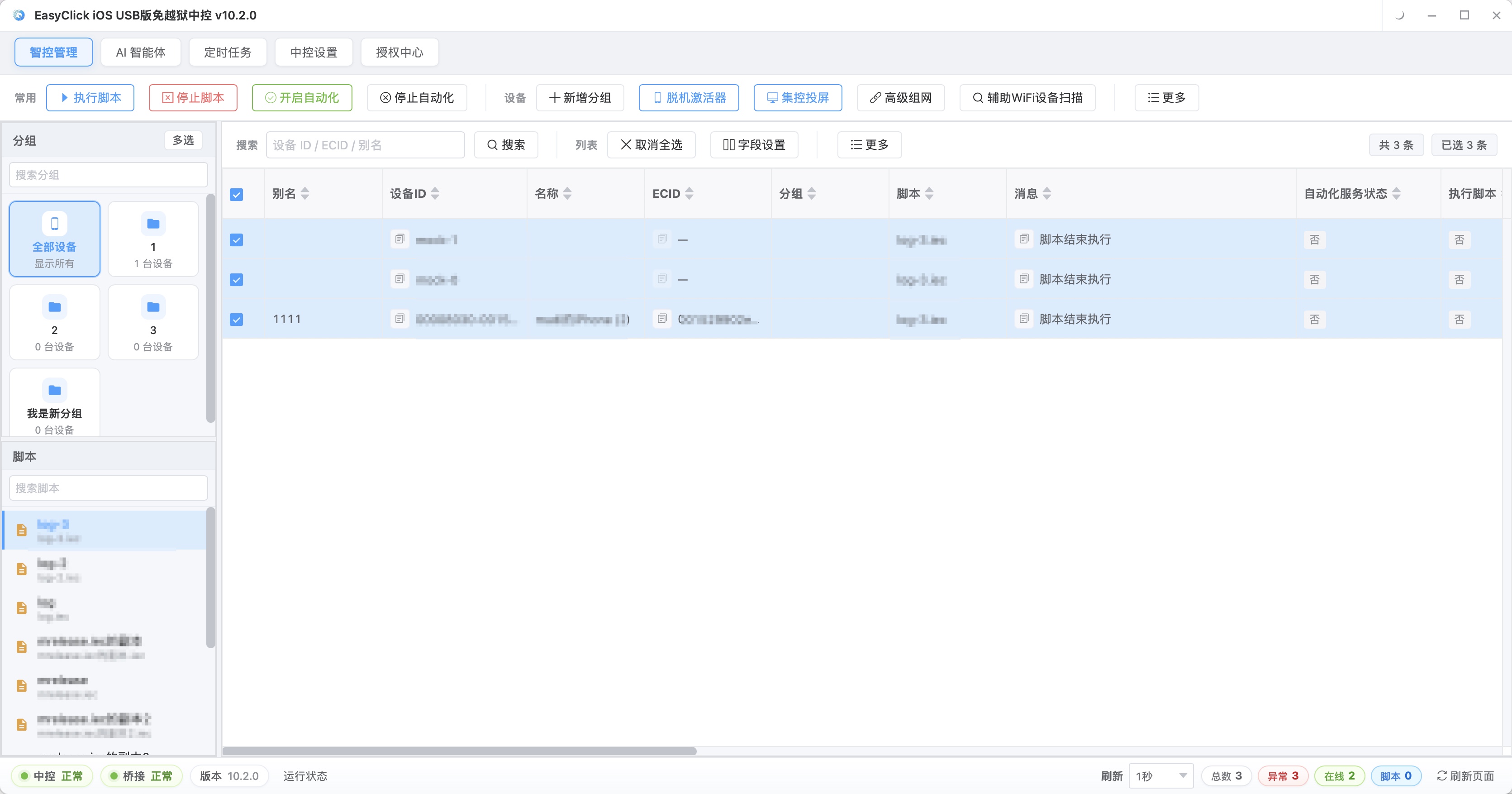
The picture above is the multi-device management screen. The left side groups by platform. The middle shows device status cards for all three ecosystems at once. You can select HarmonyOS devices and run the same flow in a batch.
Mirroring plus batch commands is the easiest to start with. The picture is captured, encoded, and sent to the computer for live display. A person watches the picture and sends commands, and the commands reach the device through the system debugging channel. It fits while a person is still in the loop. Latency depends on how long capture and encoding take, whether bandwidth is enough, and how much packet loss there is.
System-capability scripts are for tasks with no person in the loop. The script drives the app and the UI itself. Launch, wait, act, and check all finish on their own. It fits batch testing, scheduled tasks, and unattended runs.
Cloud access is the connection method once the scale is large. Devices join a cloud platform, and members in other places can manage them together. It is useful when people and devices are not in the same place.
The three can be used at the same time. First ask whether the task needs a live picture: if someone has to watch, use mirroring; if it runs automatically in a batch, use system-capability scripts; if people are spread across places, use cloud access.
Environment setup and four steps
| Item | What it is | What to watch |
|---|---|---|
| Real device | One HarmonyOS Next phone | An emulator is not for verifying real-device automation |
| System version | Update to the target version and write the version number down | Version affects interface behavior. Lock the version first |
| Developer Mode | Settings → About phone → tap the version number repeatedly | The entry can differ by version |
| Mirroring / debug authorization | Turn on mirroring authorization and the debugging channel | It can expire after a restart and needs a batch check |
| Automation engine | Install a script engine client that supports HarmonyOS | Pick an engine that updates promptly and states which versions it supports |
| Network | Computer and devices on the same LAN | On wireless, watch the firewall and IP changes |
The environment gets stuck in two places most often. Developer Mode is on, and mirroring authorization or the debugging channel is not, so the engine cannot reach the device. The device version is outside the range the engine supports, and features fail. Before you connect an engine, confirm two things: the device can be mirrored, and it can receive one test command.
Authorization and device binding are tighter on HarmonyOS than on Android. Move the same phone from USB to wireless and the authorization state can change. When connecting in a batch, fix the connection method for each phone and keep a device-to-authorization ledger. When something will not connect, check that ledger first.
From zero, there are four steps. Prepare one HarmonyOS Next phone, update the system to the target version, and write the version number down. Turn on Developer Mode and mirroring or debug authorization, and confirm the device is visible in the engine. Install an automation engine that supports HarmonyOS (such as EasyClick), build the channel between the computer and the device, and try both the picture and a command once. Then record or write the first script: open the app → wait → perform the action → assert the result. Pass it on one phone, then send it out in a batch.
Step 4 takes the most time. A minimal script is usually:
1. Connect the device and confirm the picture and command channels are working
2. Launch the target app and wait for a home-screen element (timeout 15s)
3. Locate the target button by text or control properties and tap it
4. Check the result: assert that the page jumped to the expected page
5. Record the run log and a screenshot, then finish
Before you write, walk the target flow by hand and note the page at each step: which elements are on the current page, where a tap goes, and whether there is a popup or a loading prompt. The script then follows that record. HarmonyOS interfaces are relatively new. Get the first version running, then change it until it is stable.
Once one phone works, a batch run has to be able to collect results. Each phone reports status when it finishes: success, failure, or timeout. A failure has to be traceable to which device and which step.
Script thinking, fitting cases, and pitfalls
The business flow is still open the app, act, and check. The writing has to switch to HarmonyOS interfaces. Element location also moves from the Android control system to HarmonyOS UI properties.
Put the system version, the app version, and element properties into config, and change only the config on an upgrade. Use “wait for the element to appear” in place of a fixed sleep. Confirm the page is in the expected state before you act. Check again after a key step finishes, so a failure lines up with a step. Popups, update prompts, and network errors all need branches. HarmonyOS interface names and parameters do not line up one to one with Android. Look them up before you use them.
Take automatic check-in as an example:
1. Launch the check-in app and wait for the "home" element (timeout 15s)
2. If a "go to login" popup is present, tap login and finish authorization
3. Locate the check-in button (match by text) and tap it
4. Assert that a "check-in succeeded" prompt appears; otherwise take a screenshot and record the failure reason
5. Report the result and finish
While debugging, keep single-step execution, live logs, and screenshots. HarmonyOS UI property names and values can differ from what you expected. A screenshot plus the log is the easiest way to look it up.
Fitting cases:
| Case | Typical task | Main gain |
|---|---|---|
| Automation testing | Case regression, UI smoke tests | Fast regression during version updates, lower manual cost |
| Batch install and setup | Batch app install, batch authorization, unified settings | New devices reach a usable state quickly |
| Operations tasks | Check-in, content publishing, batch actions | Scheduled unattended runs |
| Device management | Status checks, remote viewing, batch control | Central management of devices at scale |
| Data collection | Collect public page information | Many devices in parallel raise throughput |
Start with tasks that are frequent, have fixed steps, and carry low risk. Automation test regression and batch initialization are the easiest places to see a result first. For operations work, get one phone running, then go to a batch, and watch stability and the compliance boundary at the same time. Starting with the hardest task usually knocks confidence down.
The cost of failure also differs. In a test, a failure means rerunning one case. In operations, a failure can mean publishing twice or acting twice. Operations scripts need idempotency written into the design.
Versions move fast, so lock the script to a target version. Verify on a test phone before an upgrade, then roll it out to all devices. After a restart, a system update, or a disconnect, authorization can be reset. You need a batch check, and a periodic inspection. Android scripts cannot be run as they are. The interfaces differ, so they have to be rewritten against HarmonyOS interfaces.
When mirroring stalls, check bandwidth, packet loss, and wireless interference first, then the encoding load on the device. On a LAN, prefer wired. Some apps detect automation commands. Verify with system capabilities that the task can be done, then decide on the setup. HarmonyOS docs and examples are far fewer than Android. When an interface is unclear, check the official docs. Do not copy Android interface usage across.
The HarmonyOS cluster control USB edition, as the install docs describe it, is a Windows computer plus one HarmonyOS Next phone, connected to the computer with a data cable. On the phone, turn on Developer Mode and USB debugging first: in Settings, open System or About phone, and tap the version number repeatedly (on some models it is called the software version) until it says you have entered Developer Mode. Then turn on USB debugging under developer options, and tap allow or trust on the prompt after you connect. Install the central control from the product downloader: identity set to ordinary user, platform ticked as HarmonyOS Next, component ticked as HarmonyOS Next cluster control and mirroring. Use a plain English install path. The default example is D:\EasyClick. After install, open the directory and double-click 新中控.exe, then register and log in. Select the device in the list, click Start Automation, and service status should show Yes. Licenses come in two types: the USB device license is for running scripts, and the USB mirroring license is for mirroring and operating the phone by hand. With only the device license and no mirroring license, scripts can run and mirroring is limited. Open mirroring from group mirroring in the central control, choose the new interface, then click start mirroring. Those two documents do not give a specific system version number.
Related reading: For HarmonyOS automation script engine capabilities and version support, see HarmonyOS screen mirroring and cluster control on the official site.
About EasyClick: A mobile automation script development platform covering three phone ecosystems: Android without root, iOS without jailbreak, and HarmonyOS. It also offers Apple script writing, Apple cluster control, Android cluster control, remote cloud control, and AI phone cluster control. → Explore all products
Ready to build it for real?
Every approach in this article can be built on the EasyClick phone automation platform — full documentation, developer tools and cluster/cloud-control products, free to try.